
We are influencers and brand affiliates. This post contains affiliate links, most which go to Amazon and are Geo-Affiliate links to nearest Amazon store.
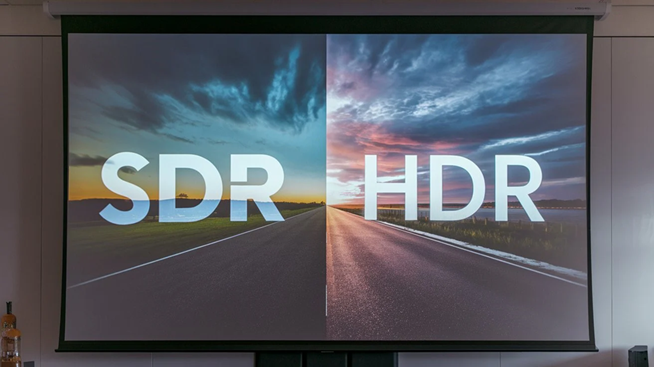
Most modern screens usually include HDR technology, which is basically a significant improvement over standard SDR. In short, HDR screens can display a much wider range of colors, exceeding 1 billion colors, compared to the 16.7 million colors that 8-bit SDR screens can display.
Checking if your screen supports HDR should be fairly simple. You can start by looking up the technical specifications online to confirm if the screen uses HDR-compatible technology. However, if you are unsure, cannot find enough information online, recently changed your screen, or suspect a software problem, there are ways to verify it.
Personally, I have a Google Pixel 8 Pro that I bought refurbished. This device has an OLED screen with HDR, but during the time I used it, I could not notice HDR in videos, even though it supports 10-bit recording. The colors looked incredibly dull when I tried it, so I preferred to disable the option.
I started thinking that it might not be an original screen. I eventually discovered that the issue was due to a software problem, which was fixed recently after a beta update of Android 16.
Which Browsers Support HDR?
Most popular browsers like Google Chrome, Microsoft Edge, and Safari support HDR. Keep in mind that your screen must be capable of displaying HDR content natively. In most cases, screens become brighter when playing HDR content, which is an easy way to differentiate it from SDR.
Back to the issue, here are two ways to check if your screen supports HDR to clear any doubts.
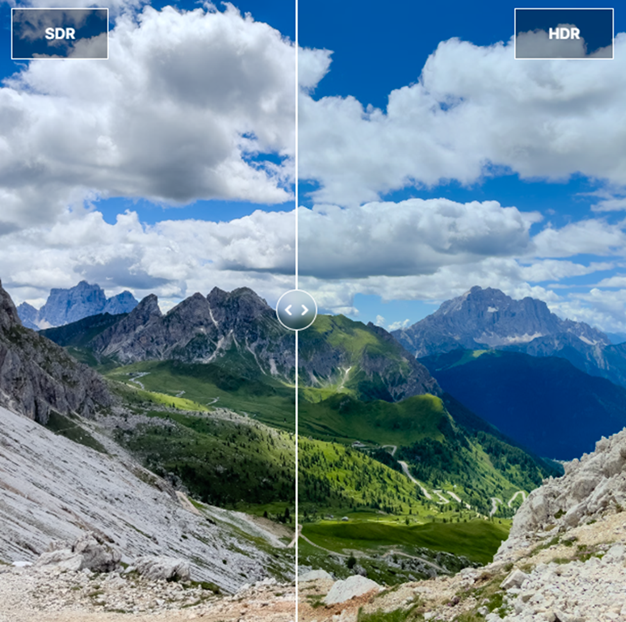
Wide-Gamut is a very easy-to-use website that works perfectly to check if your screen supports HDR. There are different ways to use the test. The first is with comparative images that show the same image in SDR and HDR formats. This way, you can easily notice the difference in brightness to confirm if your screen can display colors in high dynamic range.
Although it may seem counterintuitive, if a screen without HDR support plays HDR content, it will likely look worse than the SDR version, which is another way to check.

My current monitor does not support HDR, so Wide-Gamut tells me that my monitor is not HDR-compatible. However, when using my Pixel 8 Pro, I could easily see the HDR images, and that warning did not appear.
2. Watch HDR Videos on YouTube
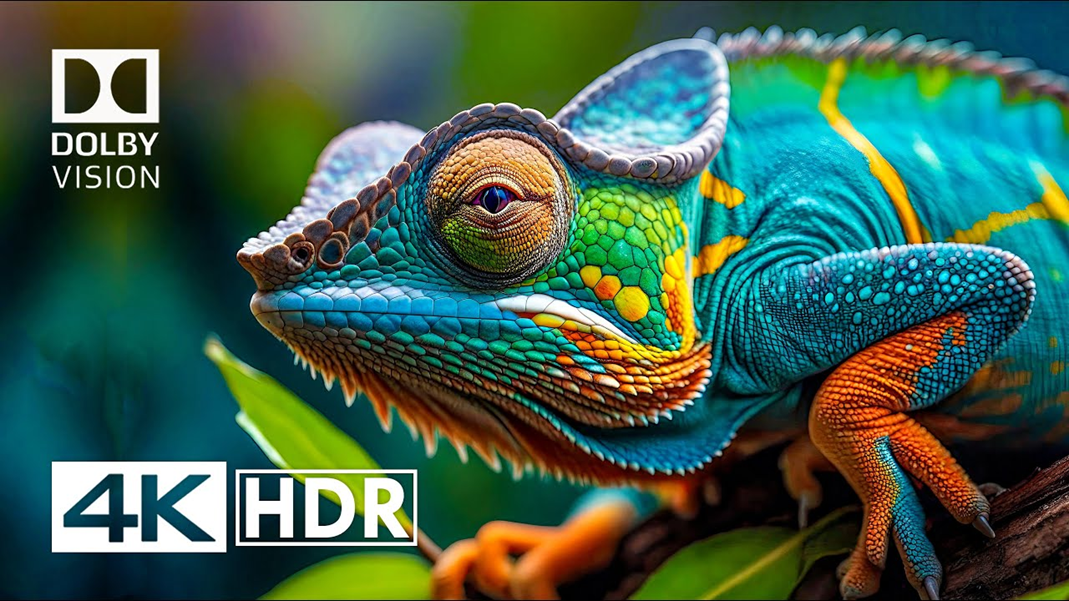
YouTube supports HDR for videos that use it, so you can play a video to confirm if YouTube detects that your device supports HDR.
To avoid playing a video that is not HDR, you can click here to watch this HDR video on YouTube. If, when changing the video quality, you do not see any option marked as HDR (for example, 1080p HDR or 4K HDR), then your device screen might not support HDR.
What if you still do not see HDR content?
If your screen still does not show HDR, even though you know it is compatible, carefully check the device settings. In many cases, there is an option related to brightness, picture mode, or advanced settings where HDR may be disabled by default.
We are influencers and brand affiliates. This post contains affiliate links, most which go to Amazon and are Geo-Affiliate links to nearest Amazon store.

My name is Joel! I love to read, I go to university like most people my age.
In my free time I usually train boxing, I love music, I also know how to play the guitar and the harmonica.