
We are influencers and brand affiliates. This post contains affiliate links, most which go to Amazon and are Geo-Affiliate links to nearest Amazon store.

I am currently developing a small personal project about a live chat, so I am still far from thinking about publishing it on a server with its own domain. To be honest, I do not even know if I will end up finishing it. However, since the project requires an internet connection, it is necessary to test how it works. Because of this, I started looking for a fast and easy way to turn my local Node.js server into something online that I could share through a link.
For many people, Heroku could be a good option, and although I tried it, the truth is that I do not think it is the best choice. It requires payment, and most of the time I forgot to disable the option that keeps it online when it was not needed. In addition, Heroku requires constantly updating the project changes, which in the end takes more time.
So I ruled out Heroku until I discovered ngrok, which is basically a simple way to temporarily turn a local Node.js server into an online one. That was exactly what I needed. The best part is that it was very easy and fast to set up. To be precise, it probably took me less than two minutes.
Of course, there are many more advanced features that can be used with ngrok, but for this specific purpose, it works perfectly.
Therefore, today on Dragon Blogger, I will show you how to turn a local Node.js server into an online one for free using Ngrok. Normally, when we talk about a local server, we refer to localhost port 3000. You do not need to upload your content to a GitHub repository or anything like that. You can easily do this directly from the Command Prompt after following a few steps.
Download Ngrok
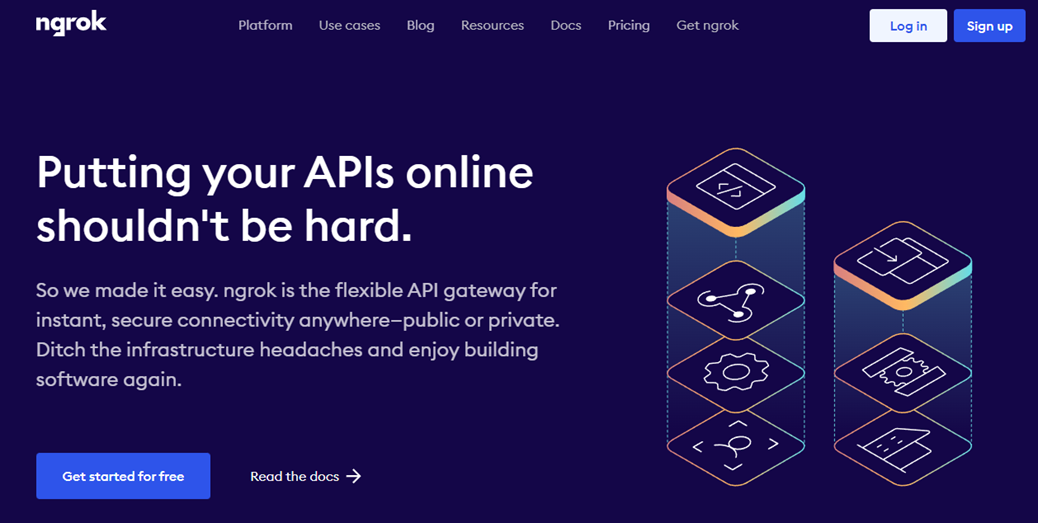
The first step is to download ngrok. Simply click here to go to the official Ngrok website. Then, create a free account. The next step is to download the Windows version, which will take you directly to the official Microsoft Store.
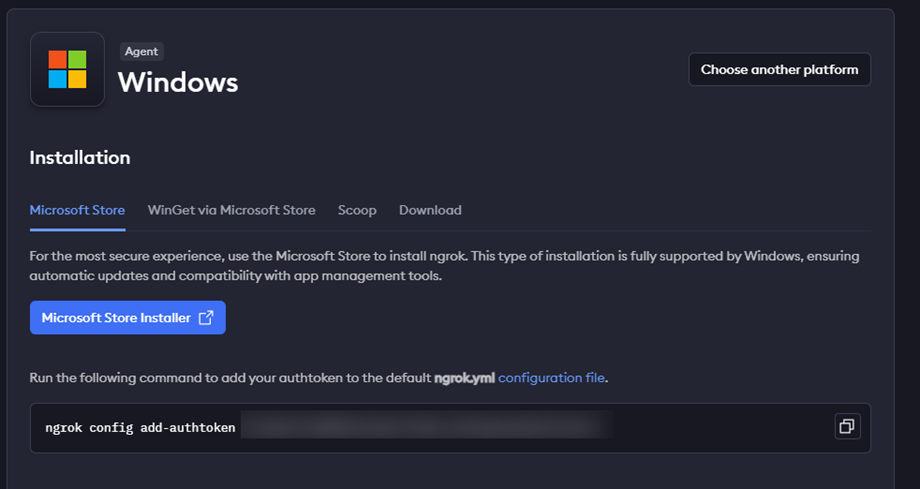
Once there, you just need to run your local Node.js server in the Command Prompt. Then, go to the ngrok page and you will see a unique command that starts with "ngrok config add-authtoken". Paste this token into a new Command Prompt window to authenticate your account. Keep in mind that this is a private code, so do not share it with any unauthorized person. This is not the link you will share with your friends yet.
After running the token and validating it, add the following command: ngrok http 3000. Once executed, it will connect to a server and generate a link. That is the link you need to share with your friends to test your local server online. Without a doubt, this is the easiest and fastest way to do it.
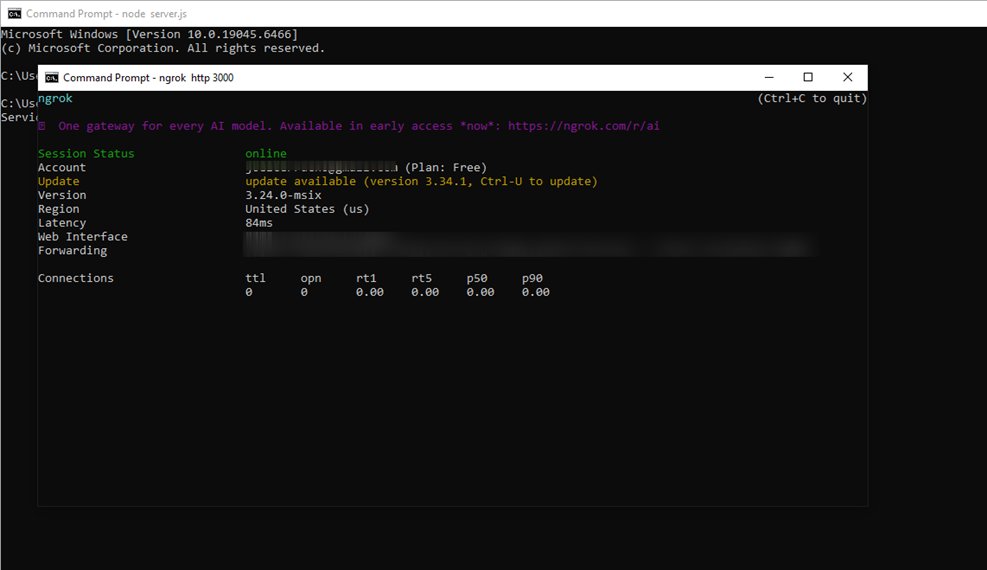
If everything goes well, you should see something similar to this.
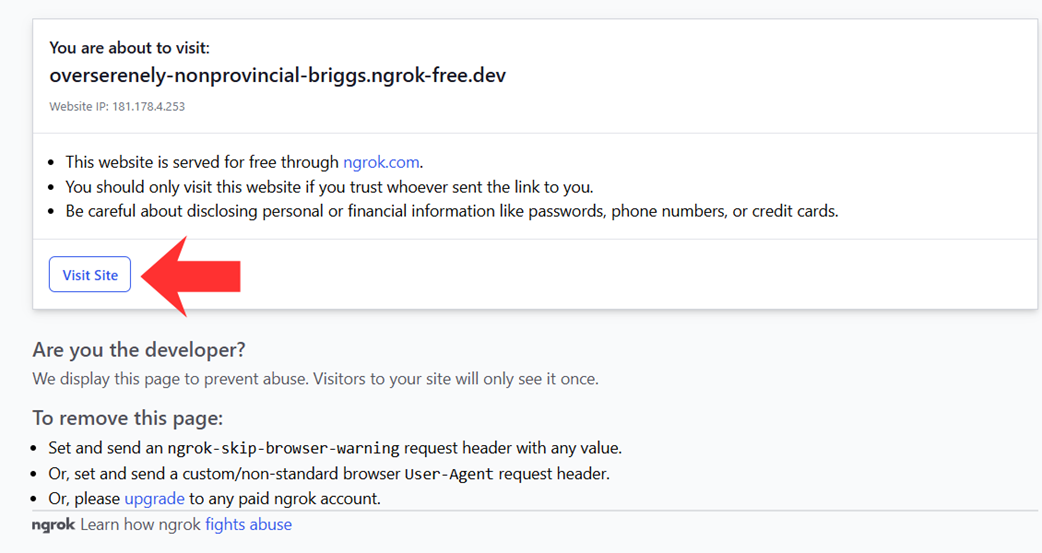
Once the link opens, ngrok will display some recommendations and security notices. If everything is correct, simply click "Visit Site" and that is it. Your server, which previously only worked locally, can now be shared over the internet, even if your testers are not in the same city.
The only drawback you should keep in mind is that this is not a permanent link. Once you shut down your local Node.js server, the link generated by ngrok will automatically be disabled. Because of this, think of it as a way to test a project that requires an internet connection.
When your project is almost finished, it will be a good time to get your own domain and a quality server.
We are influencers and brand affiliates. This post contains affiliate links, most which go to Amazon and are Geo-Affiliate links to nearest Amazon store.

My name is Joel! I love to read, I go to university like most people my age.
In my free time I usually train boxing, I love music, I also know how to play the guitar and the harmonica.