
We are influencers and brand affiliates. This post contains affiliate links, most which go to Amazon and are Geo-Affiliate links to nearest Amazon store.
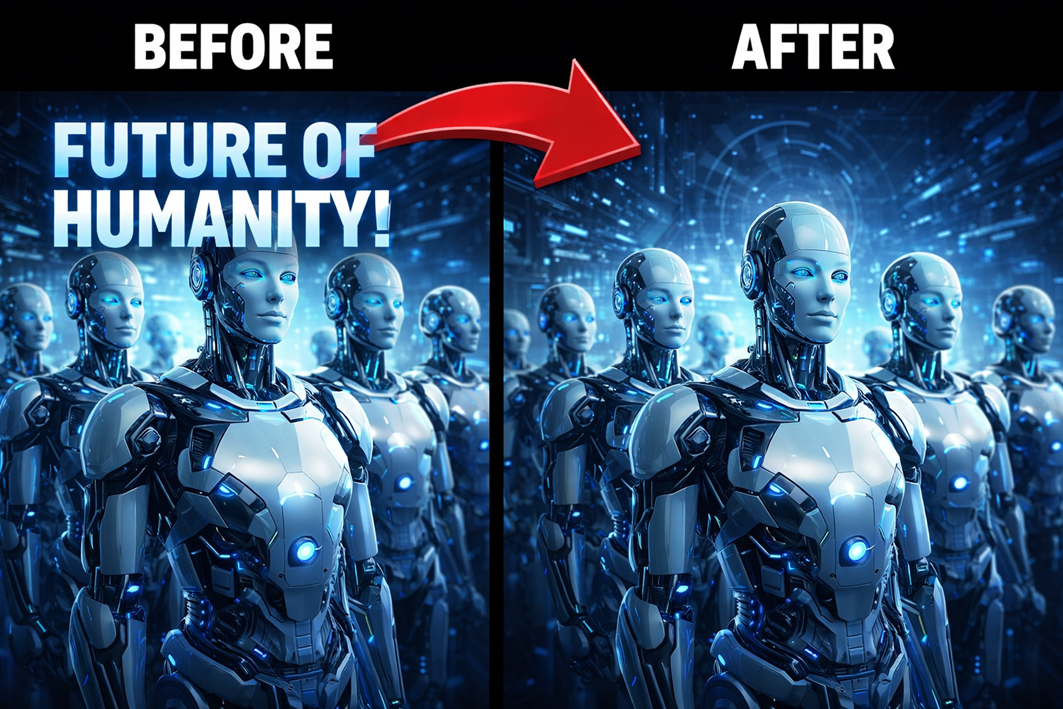
If you have ever wanted to use an image but felt that the text on it ruins it or makes it unusable for your purpose, this article will be exactly what you need. Today we will show you a fast and free way to remove text or objects from any image using an online tool that you can access directly from your browser.
There are many tools on the internet that remove text, and most of them use artificial intelligence to improve the results. One of the most widely used and reliable options is Pixelcut, so today we will show you how to get professional-looking results in just a few clicks.
However, we will also show you how to do it with ChatGPT. This method is a bit slower because the processing takes more time, but it can be very useful in cases where more detailed analysis is needed or if you are not getting the desired results with standard tools.
Pixelcut offers many tools, but we will focus on its text remover, which works to eliminate almost any object, including watermarks that you have the right to remove.
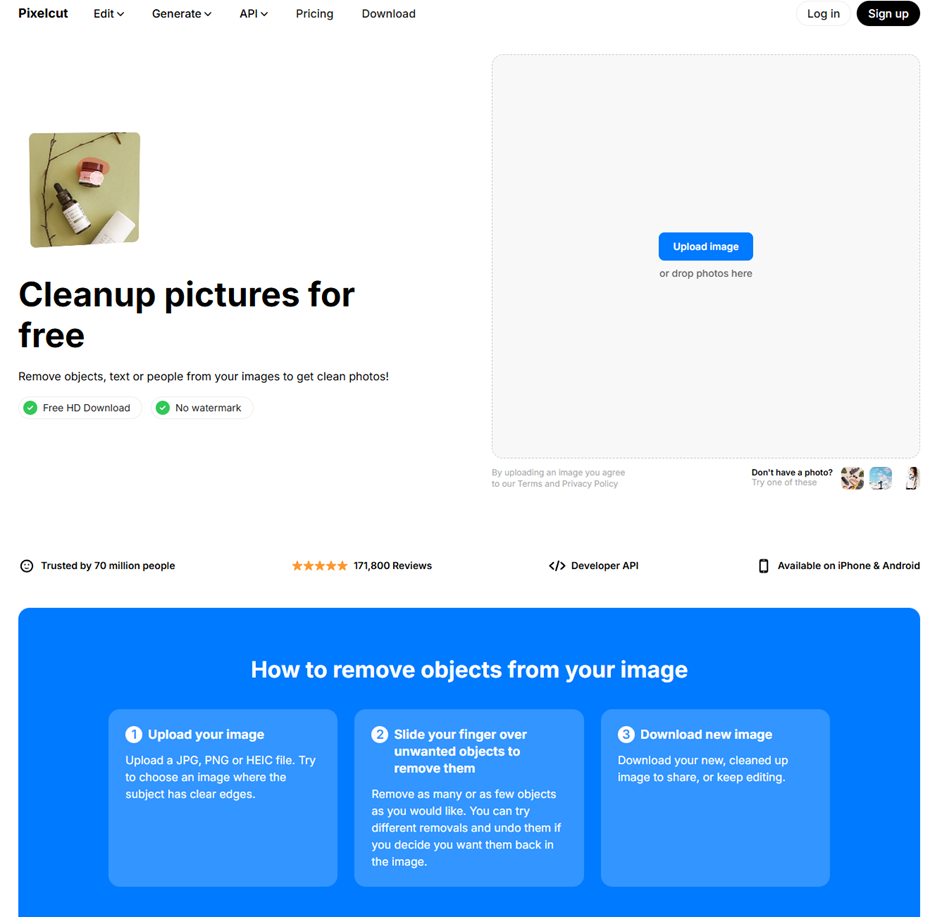
Once you are on the website, simply upload your image. It will then take you to the editing section, which is exactly what we will explain next.
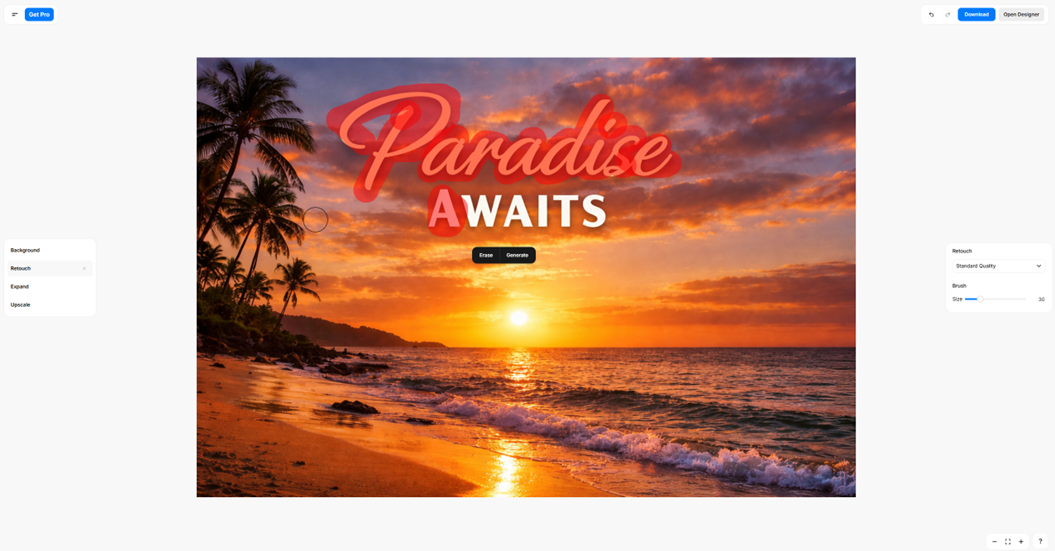
Once you are in this section, just use the brush tool and cover everything you want to remove. In our case, we are removing the text “Paradise AWAITS” to keep only the sunset beach background. The brush size of the magic eraser can be easily adjusted to improve precision and avoid removing unwanted objects.
Next, we will show you how the result turned out.
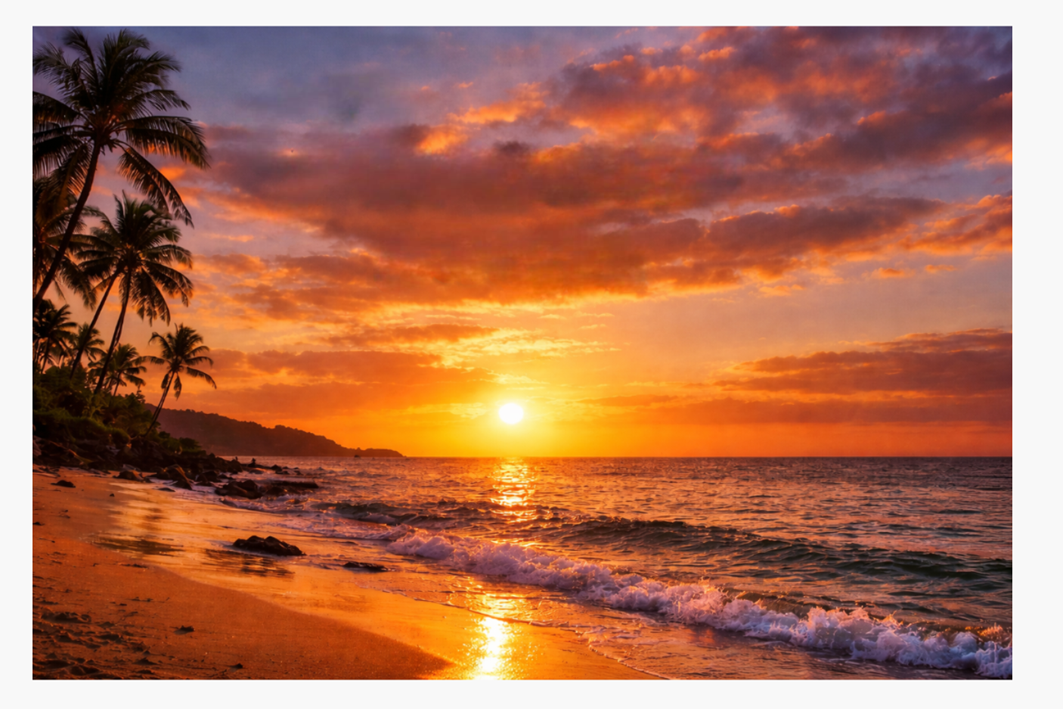
This is the final result. It took less than 20 seconds and looks perfect, so once you are done, simply download the image. There is a free version available, but if you want native quality and want to avoid image compression, you can upgrade to the Pro version.
Removing Text from an Image with ChatGPT
If Pixelcut cannot handle the job, ChatGPT can certainly take care of it thanks to its extensive training on millions of images. It can often preserve what is behind the text more accurately, even when there are not many visual references. For this reason, we recommend using ChatGPT if the image is very complex.
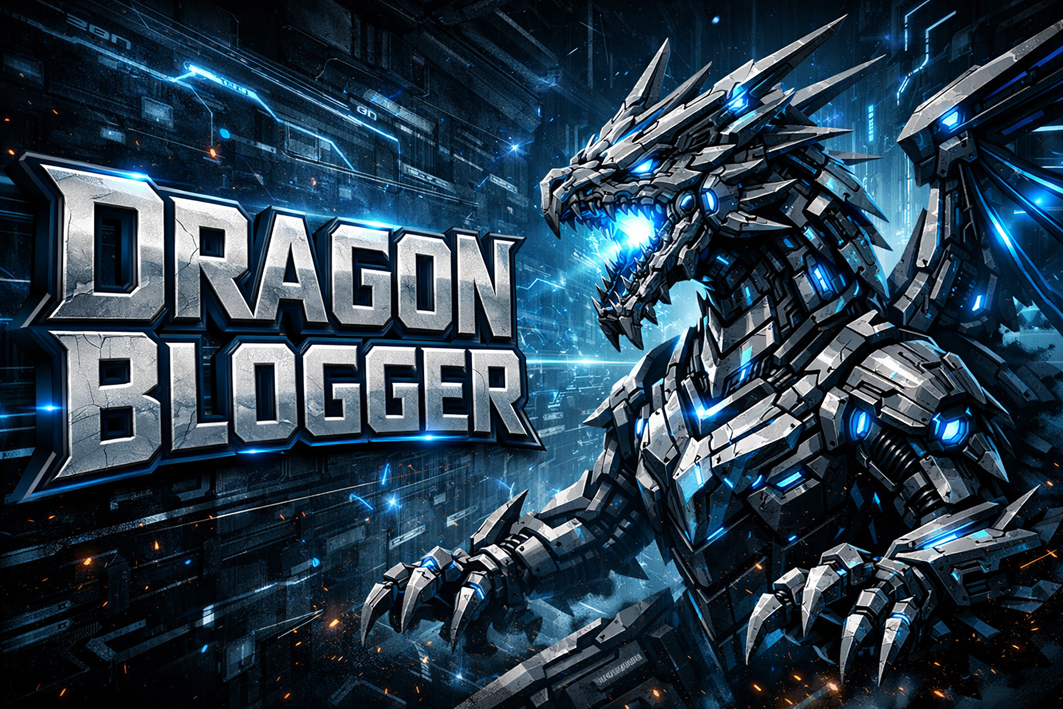
We will use this image as our base, which shows a futuristic robotic dragon. We will ask ChatGPT to remove the text so that only the dragon and the background remain.
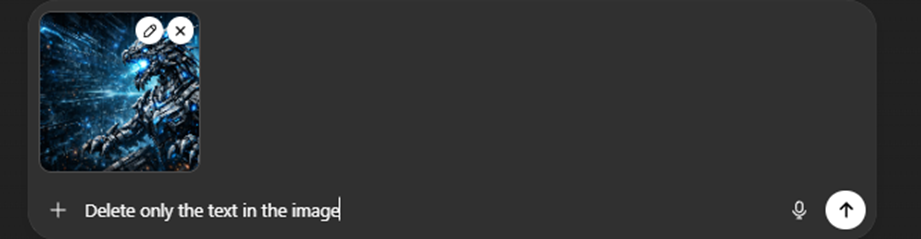
Here, we simply type what we want to remove. In our case, we only want to eliminate the words “Dragon Blogger”.
We then wait about a minute for the edited image to be returned. Keep in mind that your prompt should be a bit more detailed if you want to preserve specific text or objects.
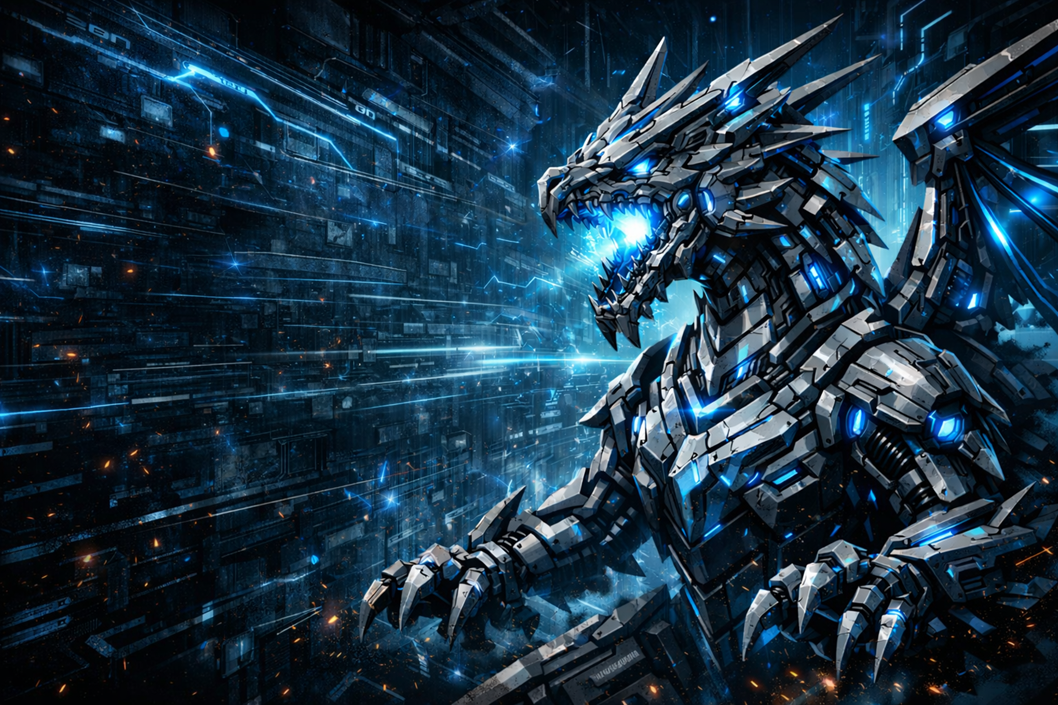
And this was the result. As you can see, it is incredibly precise and looks very professional. I would recommend using ChatGPT if you need the result to look completely natural. The only downside is that you can only edit a limited number of images per day for free before needing to upgrade to a paid plan, but it is definitely worth trying.
We hope these two methods help you remove text from images directly from your browser!
We are influencers and brand affiliates. This post contains affiliate links, most which go to Amazon and are Geo-Affiliate links to nearest Amazon store.

My name is Joel! I love to read, I go to university like most people my age.
In my free time I usually train boxing, I love music, I also know how to play the guitar and the harmonica.