
We are influencers and brand affiliates. This post contains affiliate links, most which go to Amazon and are Geo-Affiliate links to nearest Amazon store.
Today at Dragon Blogger we bring you a quick article explaining how to check the lifespan of an SSD for free. This is very useful if you are not sure about the current condition of your SSD, which is essential since it may store very important data. If your drive is in a condition similar to the one we show today, it may be time to start thinking about replacing it.
If you wait until your storage drive fails due to wear and tear, it can become prone to critical errors and, in the worst case, a total failure that could permanently erase all your data.
How to Check the Lifespan of an SSD on a PC
It is very simple. You just need to download CrystalDiskInfo, a free program that provides a complete readout of your storage health. It also includes information for HDD drives. You can download it for free from the official website or from the Microsoft Store.
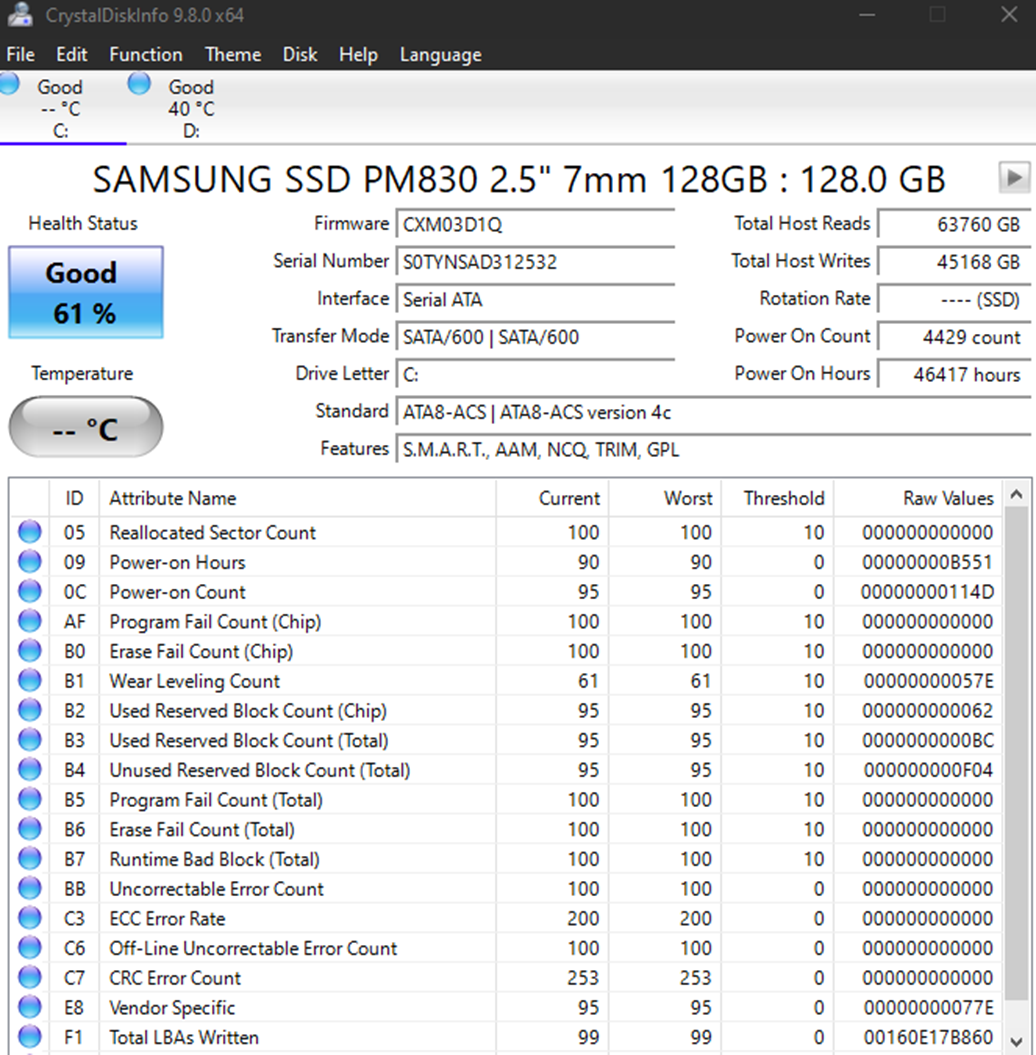
Once you open the program, it will automatically display the data, so there is not much to configure to see the most important information. On our test PC, the Samsung SATA SSD showed a health percentage of 61 percent, which was already close to the recommended limit before considering a replacement.
Out of all the data shown by CrystalDiskInfo, which are the most important?
The most important values are:
- Health percentage under 50 to 60 percent means you should consider replacing the drive soon. It indicates how much lifespan is left.
- Reallocated sectors greater than 0 mean failure. These are damaged sectors that have already been replaced.
- Current pending sectors greater than 0 mean there is a risk of data loss. These are sectors that fail during reading.
- Uncorrectable errors greater than 0 mean urgent replacement. These errors cannot be recovered.
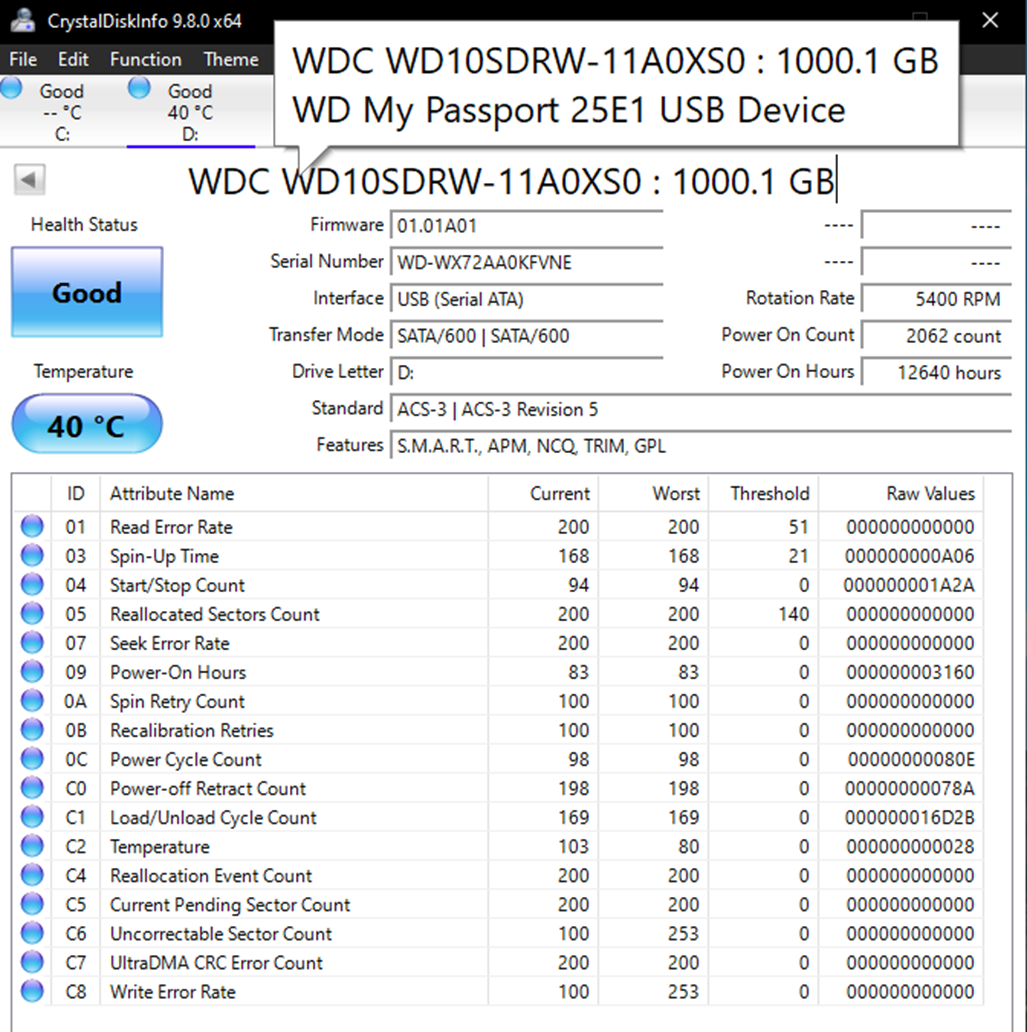
If you click the arrow located in the upper left corner, you can switch between different storage drives if you have more than one installed. In our test, we also used an HDD, which showed a “Good” health status but not an exact percentage. This is likely because the drive does not report all SMART data, which is what CrystalDiskInfo uses to calculate health.
Need a New Storage Drive? Consider These Three Options
We are influencers and brand affiliates. This post contains affiliate links, most which go to Amazon and are Geo-Affiliate links to nearest Amazon store.

My name is Joel! I love to read, I go to university like most people my age.
In my free time I usually train boxing, I love music, I also know how to play the guitar and the harmonica.