
We are influencers and brand affiliates. This post contains affiliate links, most which go to Amazon and are Geo-Affiliate links to nearest Amazon store.
There's a good chance you'll need to compress images at some point. For example, many websites only accept images under a certain file size, so using an image compression tool is a great way to reduce the size of your images, whether they're JPEG or PNG files.
In this article, I'll show you two ways to do it. One is simpler, while the other is a bit more technical, although it's still very easy to use. The second option is better if you want to manually adjust an image's dimensions.
1. iLoveIMG
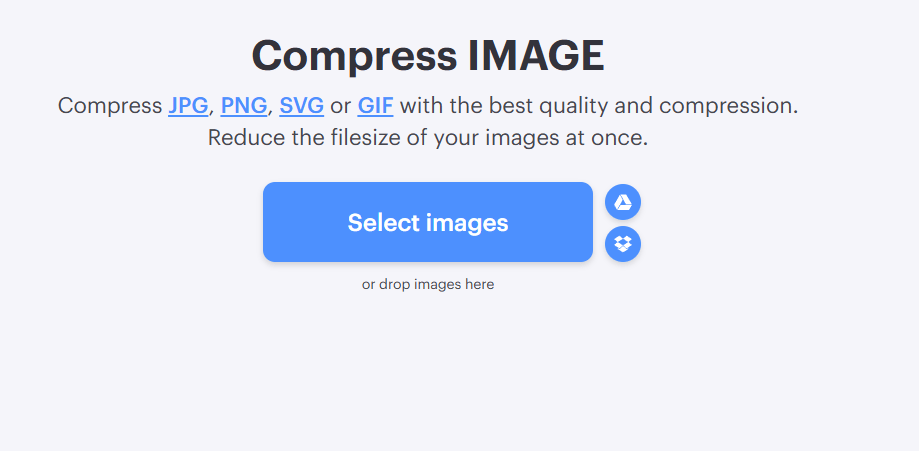
iLoveIMG is a very complete tool that offers several features, but its image compression tool is incredibly easy to use. All you have to do is drag and drop one or more images, and it will reduce their size in just a few seconds. I highly recommend it if you're not looking for anything technical and want to preserve image quality while significantly reducing the file size.
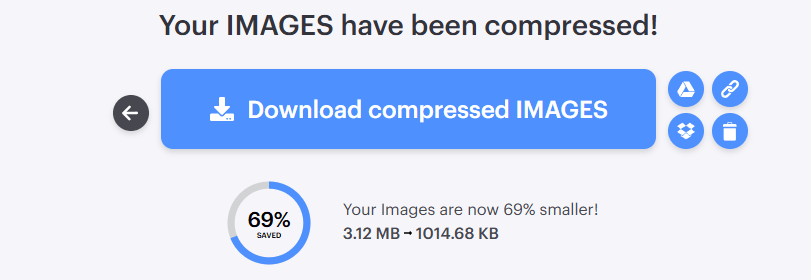
I tested it myself, and it was very straightforward. As you can see, I used an image that originally had a file size of 3.12 MB, and it was reduced to about 1 MB. That works out to a 69% reduction.
2. ResizePixel
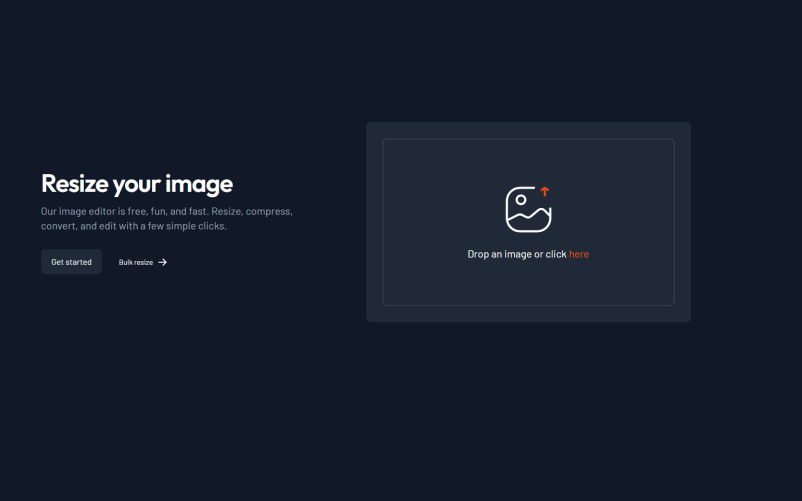
This option is more geared toward people who want to compress images while also adjusting their dimensions. Simply drag and drop the image, or browse your computer to upload the one you want to edit.
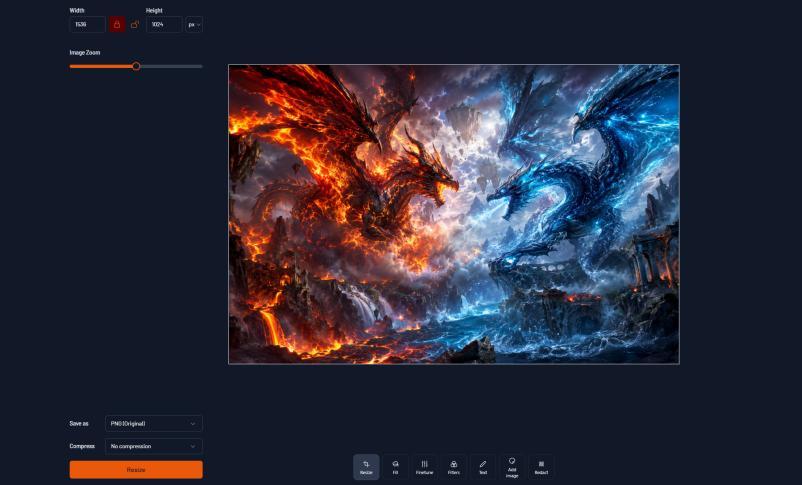
Once you've uploaded the image, you can adjust its dimensions in the upper left corner. The image I'm using originally measured 1536 px wide by 1024 px tall. If, for example, you want the width to be 700 px, simply enter that value, and the height will automatically adjust to maintain the correct aspect ratio and prevent the image from becoming distorted.
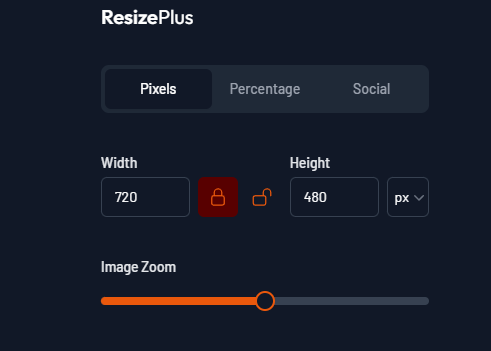
You can also adjust the zoom, although it's not a feature I use very often. In some specific situations it can be useful, especially for images with a lot of white space around them. Even so, for those cases it's usually better to use a cropping tool since it's much more precise.
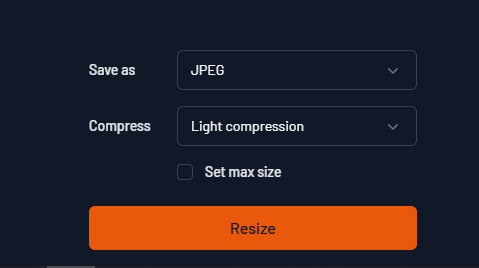
Once you've finished everything, it's time to download your image. Before doing that, though, you can choose whether you want to compress it even further. ResizePixel offers three compression levels, so if you've already reduced the image dimensions, you usually won't need a high compression setting. In most cases, the low compression option will be more than enough.
It also lets you convert images from PNG to JPEG, a format that generally takes up less storage space.
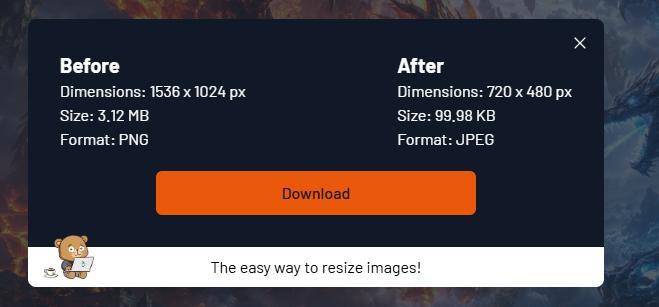
And here's the final result, with a significant reduction in file size. Just keep in mind that shrinking an image too much can cause it to lose a noticeable amount of detail, especially when zooming in or when working with large images.
That's all for today!
We are influencers and brand affiliates. This post contains affiliate links, most which go to Amazon and are Geo-Affiliate links to nearest Amazon store.

My name is Joel! I love to read, I go to university like most people my age.
In my free time I usually train boxing, I love music, I also know how to play the guitar and the harmonica.