
We are influencers and brand affiliates. This post contains affiliate links, most which go to Amazon and are Geo-Affiliate links to nearest Amazon store.
If you have ever wondered whether creating a Google Chrome extension was difficult, the truth is that today it is easier than ever because you do not even need to know how to code when AI can handle a large part of the work. The most important thing is your creativity, because an extension that solves a real problem is much more valuable nowadays.
So, today I will show you how to create one easily and quickly using a large language model like Gemini, ChatGPT, or Claude. However, for this test, I used the web version of Claude, specifically its free Sonnet 5 model.
I chose Claude because its web version is slightly better for programming compared to other models. It can work with multiple files and provide them together in a single ZIP folder that you can extract, instead of other models that are often limited to generating a single file or requiring you to copy and paste the code manually, at least when using their web versions.
What Do You Need to Create a Google Chrome Extension?
The first thing you need is an idea, of course. Once you have one in mind, you can start working on it through a prompt, which is basically the instruction an AI uses to understand the context of what you are trying to create.
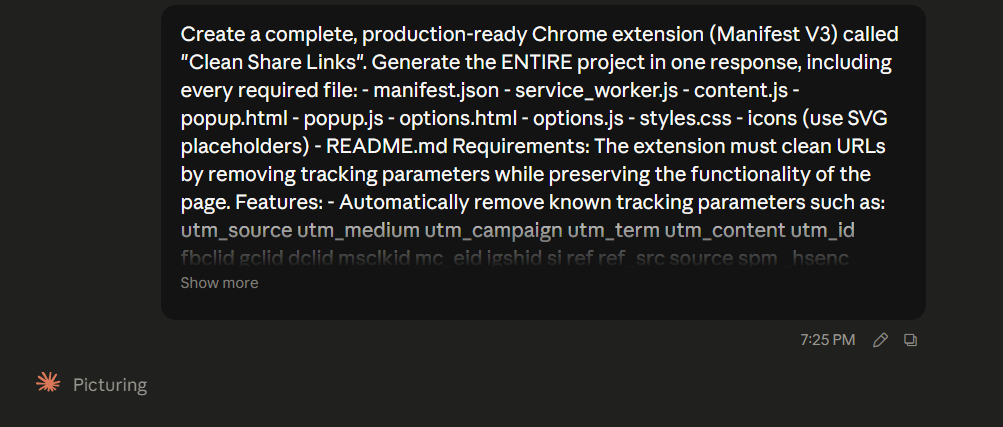
For this example, my idea was a Google Chrome extension capable of automatically cleaning the links I copy by removing tracking parameters and unnecessary tracking data.
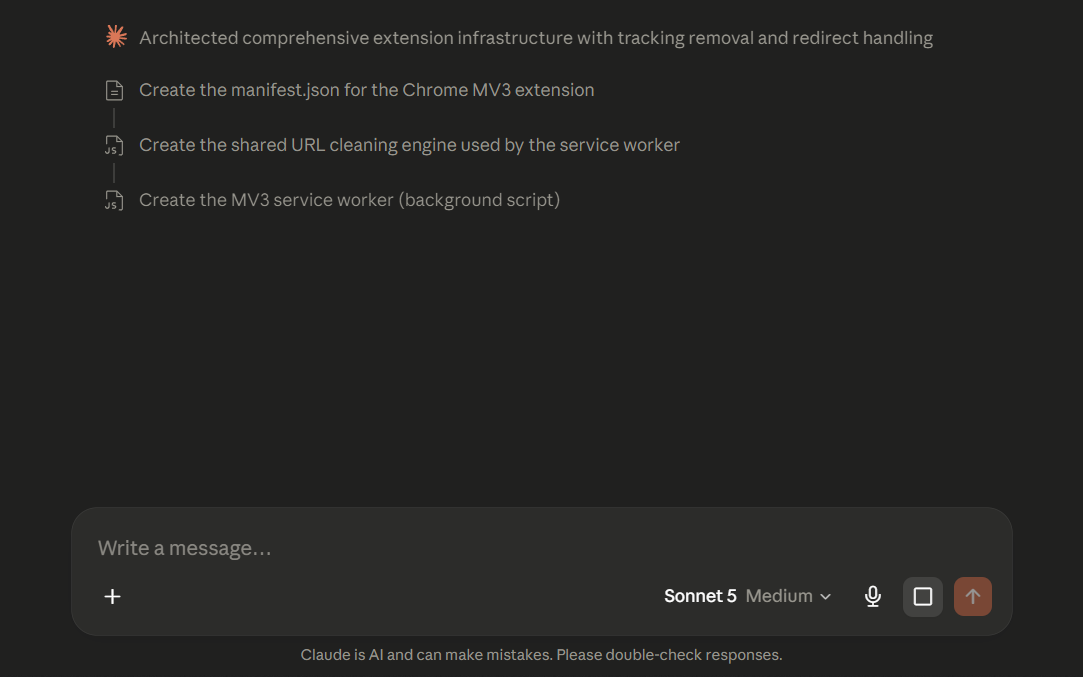
In this image, you can see Claude working on the extension. In general, Claude’s quality is quite good, so although free users have usage limits, there should not be many issues when creating most low to medium complexity extensions.
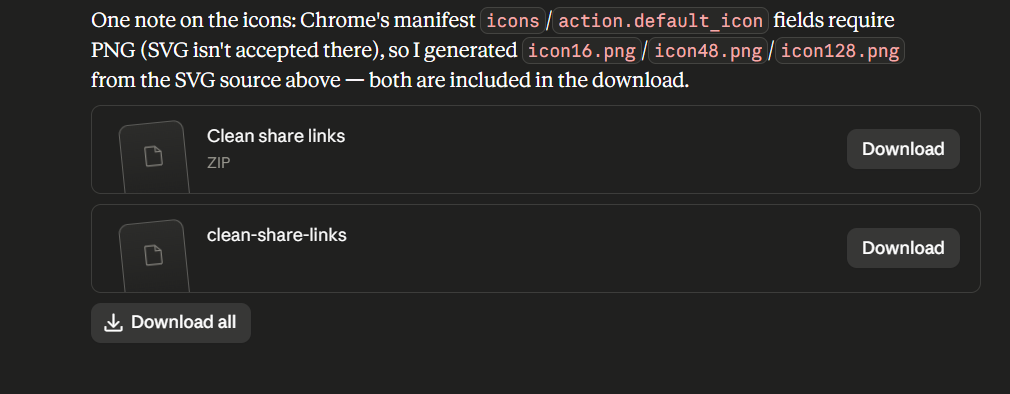
After a few minutes, Claude provided me with the ZIP file containing the necessary files for the extension to work correctly in Google Chrome. Once you download it, you need to extract the files, and you will finally have a folder.
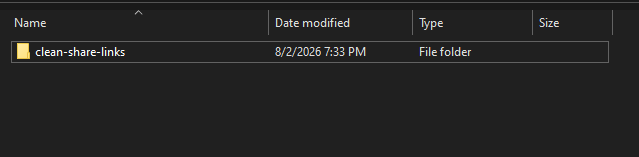
Inside that folder, you will find another folder with the same name. That is actually the folder you need to use. I mention this because when uploading it to Chrome, I initially received an error, which I quickly solved by entering the inner folder instead.
How to Test a Local Extension in Google Chrome?
This is one of the most important steps because you might think you need to pay to upload an extension, but for local testing, you do not need to pay anything unless you decide to publish it online in the future.
If you decide to publish it on the Chrome Web Store, you only need to pay a one-time $5 registration fee. After that, you can continue publishing new and innovative extensions without paying any additional fees.
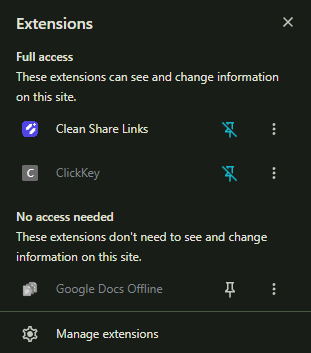
The first thing you need to do is open the extensions menu, located in the upper-right corner of Chrome. Then, select the “Manage extensions” option. Once you are there, you need to enable Developer mode so you can upload your own extension. The Developer mode option is also located in the upper-right corner.
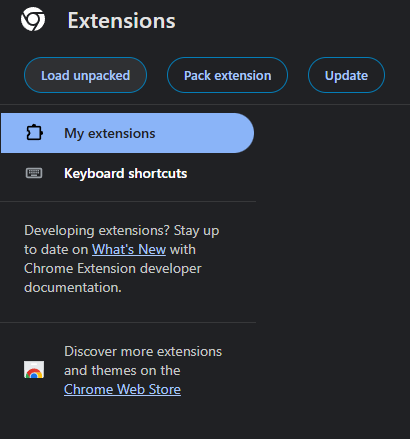
Chrome will now allow you to upload your own extension. All you have to do is select “Load unpacked” and then choose the folder containing all the extension files. Once you do this, the extension will load successfully and will be ready to use and interact with web pages.
This is a great way to test your extension and make sure it has as few errors as possible before thinking about publishing it online for other users. This is important because it is necessary to thoroughly review an extension. You would be surprised by how many extensions exist with very poor ratings due to bugs or problems.
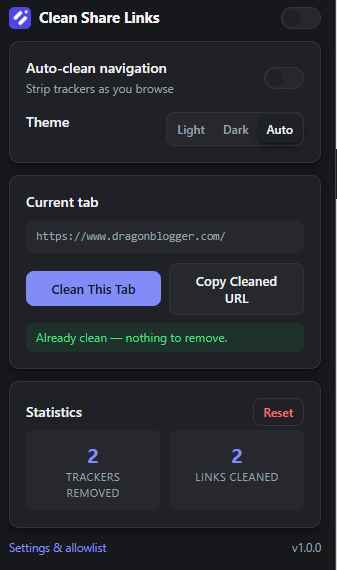
Here is the extension I created with Claude’s help. It works quite well, but it is not something I would personally use every day. The goal was simply to show you the potential available if you have a good idea in mind. AI can handle a large part of the development process if programming is something you struggle with.
That is all for today!
We are influencers and brand affiliates. This post contains affiliate links, most which go to Amazon and are Geo-Affiliate links to nearest Amazon store.

My name is Joel! I love to read, I go to university like most people my age.
In my free time I usually train boxing, I love music, I also know how to play the guitar and the harmonica.