
We are influencers and brand affiliates. This post contains affiliate links, most which go to Amazon and are Geo-Affiliate links to nearest Amazon store.
Every computer, even an Apple Mac has a video card, be it AMD, NVIDIA, Intel, Matrox, and so on. The image you are seeing at this very moment on your monitor is courtesy of a video card. Different video card chipsets and manufacturers create all sorts of flavors of video cards, from integrated, on-die or dedicated, you can thank your video card for all you see on the screen. With that introduction, I have the pleasure of bringing you my review of the EVGA GeForce GTX 1080 TI Founders Edition.
Also, make sure to read to the end, I mention how I got this card.

I know, it’s just the box and before we can get inside, I must let you know the specs of this bad boy.
Specs and Features
- 1,480Mhz Base Close
- 1582 Mhz Boost Clock
- 5GT/s Texture Fill Rate
- 3584 Pixel Pipelines / CUDA Cores
- 11,264MB 352Biut GDDR5X
- 11,016Mhz Effective
- 2,754Mhz Memory
- 484GB/s Memory Bandwidth
- 11,016Mhz Effective
- NVIDIA SLI Ready
- HB Bridge Support
- Support 4 Simultaneous Monitors
- 3 x DisplayPort 1.4 @ 7680×4320 at 60Hz
- DVI via DisplayPort to Single-Link DVI-D Adapter at 60Hz
- HDMI 2.0b
- 240Hz Max Refresh Rate
- 3 x DisplayPort 1.4 @ 7680×4320 at 60Hz
- EVGA ACX 3.0 Cooling
- 7+1 Phase Power Design
- Simultaneous Multi-Projection
- VR Ready
- NVIDIA Surround
- NVIDIA GPU Boost 3.0
- NVIDIA G-Sync Ready
- NVIDIA Ansel
- NVIDIA GameStream
- Supported API’s
- DirectX 12
- OpenGL 4.5
- Vulkan
- Green LED
Product Dimensions
- Length: 10.6in / 269.2mm
- Height: 4.376in / 111.15mm
- Width: Dual Slot
OK, now that I have teased you enough, let’s check out the unboxing
While the Pascal architecture is not new, the card is and it’s looking nice isn’t it?
Let’s go over everything that came in the box.

EVGA includes quite a few things in this package, I will go over each item included.

This users guide covers basics of the 10** and 900 series of cards. It covers the Minimum System Requirements, Included Equipment and then goes over basics on installing the card connecting the display, driver installation, EVGA Support and provides a few recommended links.


They also include 2 x Enthusiast Built sticks, one in Black and one in White.

They also include a poster

Aside from the schwag, they also include a few adapters to help you on your journey.

They include on Display port to Single Link DVI-D Adapter.

For those of you that might be missing some PCI-e power connections, they include a 2 x Molex to 6Pin PCI-e adapter.

Last but not least, include you are missing an 8Pin PCI-e connection but have an abundance of PCI-e by 6 connections, they include a 2 x 6Pin PCI-e to a single 8Pin PCI-e adapter. They want to make sure you can use this video card.
OK, that’s enough with the add-ons, let’s check out the card itself in the next page.
[nextpage title=”A Closer look at the card”]

Here she is, the EVGA GeForce GTX 1080 TI Founders Edition 11G-P4-6390. It’s OK to drool, she knows she looks good. So, let’s look around the card and check everything out.

Removing the covers, we can see the card has 3 Display ports of which are the 1.4 variety and a single HDMI port which is 2.0b. You are stuck if you display is only VGA, and if it was you may want to look at upgrading your monitor as well instead of buying an adapter. If you only have DVI, you are in luck, they do include a DisplayPort to DVI adapter as I mentioned previously. You can connect up to 4 monitors here and use them simultaneously.

Moving to the right of the card, we see that the card comes with a rubber cover over the SLI port fingers. Let’s remove it so that you can see what it looks like.

She’s a little shy now undressed but she looks amazing. While SLI is a bonus, you can remove the rubber cover even if you are not going to use SLI.

This is what the SLI HB Bridge looks like, but alas… it is not included, you will have to buy it separately.

A little more off to the side, we find the “GEFORCE GTX” logo, and there is a little more of a trick to the logo that I will show you a little later.

A little more to the right we find the 2 x PCI-e connections. This card has a 6Pin PCI-e connection and an 8Pin PCI-e connection.

Along the backside of the card we find the vents inside of the shroud but we also find 3 little holes.

Those holes are used more for OEM’s and boutiques that wish to use them to keep the cards from sagging and also protect them and hold them in place for shipping purposes then also for aftermarket manufactures to do with what they which.

Moving more to the right we reach the bottom of the card. Here we can find the PCI-e fingers that are using to slide into the x16 PCI-e slot. This card by the way is a PCI-e 3.0 card.

Here we can see the back of the card. This comes covered in a backplate covering up the PCB.

The backplate is not just smooth anodized aluminum it also has a design on it. Aside from the design, it has the “GEFORCE GTX 1080TI” imprinted on it.

It also has the NVIDIA logo as well imprinted on it.

Coming around the front of the card, we can see her in all her beauty. The Founders Edition, an NVIDIA reference design only includes one fan. I will admit, I do prefer cards with dual fans, but that will be a review and a comparison for another date.


On the front, towards the rear of the card you can find the NVIDIA logo.

From the bottom, coming up a bit we see the single fan. They gave it a nice metallic finish.

Coming up a bit more we find the vents covered in plastic to help direct airflow and some other industrial designs, complete with the bolts.

Along the front of the card as well, towards the top we find the “GTX 1080TI” brand.
While this is a Founders Edition type card only having 1 fan, it still utilizes EVGA’s ACX 3.0. Here’s a little history on ACX.
ACX 1.0
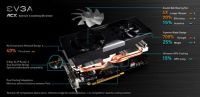
ACX 2.0

ACX 3.0

ACX 3.0 claims to have 13% more optimally tuned heatsink and fin design than that of ACX 2.0. I wonder then, being a Founders Edition card, how can this claim be made?
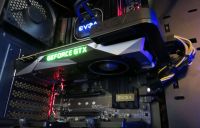
Here is the card showing off some of its style packed with the EVGA Powerlink and then showing off some LED. Now it did not just appear in the computer by looking at it, you have to install it.
In the next page, I will show you how to install the EVGA GeForce GTX 1080 TI Founders Edition.
[nextpage title=”Installing the EVGA Geforce GTX1080 Ti Founders Edition”]
This may be a section some will skip over because they may already know how to install a video card, but I do this to help those of you that do not. I do this so that you can have enough confidence installing or upgrading your own video card, even maybe building your own PC. This video walks you through installing/upgrading a video card.
Here she is installed on the EVGA Z270 FTW K motherboard, makes a nice pair.
I will have to state, I had video of me doing this install/upgrade alone but I deleted it by mistake so I had to edit a video I did on a full system build. In case it will help you, here are the 2 videos in which I extracted this video from. Video #1 is how to build a PC and Video #2 is how to cable a PC.
How to build a Gaming PC with Intel, EVGA, HyperX, Cougar and more
How to cable a Gaming PC with Intel, EVGA, HyperX, Cougar and more
Alright, now it’s time to check out how she performs. This next page has some benchmarks.
[nextpage title=”Benchmarks, Performance, Temperatures and Power Consumption”]
Before we get into the benchmarks, here are my system specs so that you can use them as reference and then also to compare with your own system.
- Anidees AI Crystal Case:https://geni.us/6NAIJBN?ygdb
- Intel Core i7 7700K Processor: https://geni.us/6NAIJBN?5e87
- EVGA Z270 FTW K Motherboard: https://geni.us/6NAIJBN?xNpK
- EVGA CLC 280 Liquid Cooling Unit: https://geni.us/6NAIJBN?m4F6
- Kingston HyperX Predator 3000Mhz 16Gig:https://geni.us/6NAIJBN?w9kPe5
- EVGA Geforce GTX 1080Ti Founders Edition: https://geni.us/6NAIJBN?cLx0
- WD Black PCI-e NVMe 512GB SSD: https://geni.us/6NAIJBN?9H46
- Samsung 850 EVO 500GB SSD:https://geni.us/6NAIJBN?1gf0fs
- Hitachi 1TB SATA 3G HD:https://geni.us/6NAIJBN?pU2QOo
- Patriot Ignite 480GB SSD:https://geni.us/6NAIJBN?eoPVsG
- Kingston HyperX 240GB SSD:https://geni.us/6NAIJBN?8leEDW
- Cooler Master Silent Pro Gold 1200W Power Supply:https://geni.us/6NAIJBN?Umwm
- Microsoft Windows 10 Professional:https://geni.us/6NAIJBN?GYbBRY
Here are the clocks and specifications of the EVGA Geforce GTX1080 TI Founders Edition as reported by TechPowerUp’s GPU-Z.
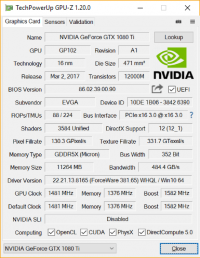
We will go over GPU-Z readings a little later in the review. The driver I was using in this review was 381.65 for Windows 10.
This is EVGA’s own utility EVGA’s Precision XOC used to read the GPU’s specifications and actually I use this in depth a little later on as well.

From this program, you can see the active GPU Clocks, Memory Clocks, Temperatures and you can control them as well, which means you can overclock. You can even go as far as changing the GPU fan speeds. We will get into that a little bit later.
For benchmarking, we will of course see the performance the video card provides, but we will also check the temperatures as well as the power consumption. In the tests I report on minimum, average and max usage using the “Kill A Watt” by “P3 International”.
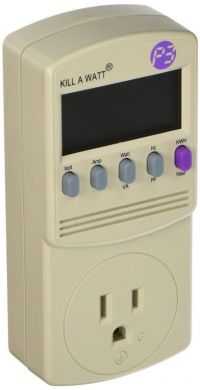
The programs I am using in order to test the performance of these cards are the following:
- FutureMark’s 3DMark Fire Strike
- FutureMark’s TimeSpy
- Metro Last Light
- Thief
- Tomb Raider
- Tom Clancy’s The Division


This is the best score I have seen so far, it performance 98% better than all other results. The lowest wattage reached during this benchmark was 147Watts, Pascal has done an amazing job with power. The average power consumption though was 352Watts with a peak of 364Watts at only 77°C.

Breaking it down, we can see the total graphics score was 28,477 while Graphics test 1 was 138.95 FPS and Graphics test 2 was 111.65 FPS. The overall physics score off of the GPU was 13,616 and coming in at 43.23 FPS and finally the Combined scored was 9,040 with a combined test of 42.05 FPS.
A new benchmark I am adding to the round up is Futuremark’s Time Spy. Time Spy is a DirectX 12 benchmark with support for newer API features like asynchronous computer, explicit multi-adapter support and multi-threading. Time Spy’s graphic tests while not at 4K, are rendered at 2560 x 1440.


Looking at this score, many might get dismayed and go back to older versions of the benchmark because they scored higher there, it sounds odd but I have seen it many times. Using older versions might be a good reference point, but you have to move with the times and truly test your hardware.
Here we can see that even though we are at stock speeds, the results from this card and machine are 93% better than all others, that is a bit refreshing. Many of the results on 3DMark and TimeSpy are results from overclocked components, but as for right now this system is fully stock.
Here I was hitting 82°C with an average wattage hit of 328Watts. The peak power draw was 369Watts and a minimum of 149Watts.

Breaking it down a bit more, we can see the individual Graphics score for both Test 1 and 2 as well as the CPU score. This is good information for a little later in the review.
One of the most grueling benchmarks that I have tested, that is not a synthetic benchmark is Metro Last Light. There could be many reasons why this makes cards perform poorly, poor optimization, high end graphics or a number of other things, and I do push it. For these tests, I pushed the resolutions a bit, unlike others because this is meant to be one of the highest end cards I pushed this card to 4K testing.
Let’s see if Metro Last Light performed well or smoked the EVGA Geforce 1080TI Founders Edition.

Throughout the benchmarks, I keep the settings the same only changing the resolutions. Here are the presets I use.

I will the show the results from all 3 presets below, 1920 x 1080, 2560 x 1440 and 3840 x 2160.

At 4K, it does look like Metro Last Light was chugging a bit a 38.53 frames per second but as usual, this would be incredibly smooth just turning down a little eye candy. Bringing the resolution down to 2560 x 1440, we can see a 48% improvement over 3840 x 2160’s score coming in at 74.1 frames per second.
At 2560 x 1440, we can see the temperature was the same 83°C but the Average wattage was slightly higher coming in at 356 Watts on average. Compared to that of 4K’s consumption of 348Watts, 2560 x 1440 consumed 2.25% more than that of 4K’s consumption. This does make sense though because since you would imagine the 4K setting would take more power, just because it would be more demanding, the 2K’s set actually did everything it was supposed to and was overly playable coming in at 74.1 frames per second.
We all want to hit or pass that magical 60 frames per second number, and while maybe I was not able to in 4K, it was more than capable at 2560 x 1440 with all of the eye candy turned up. Metro Last Light shows once again to be a great benchmark, but as these cards and driver sets improve… it may meet its day of reckoning soon.
One though that tends to steal the spotlight is Thief. This game is starting to show its age, though many do still love it. Let’s see how well it performs on this card.



Thief actually did steal the show, but everyone noticed with these scores. With each test, even the minimum frame rate was well above playable. On 3840 x 2160, on average this card held its own with everything bumped up as you saw in the example above coming in at 70.7 frames per second and then bumping it down to 2560 x 1440 frames per second, a 35.37% improvement, though not like it was needed. The bump in resolution to 4K only consumed 1 additional watt though the average temperature went up 3.13%, not bad for such a high resolution.
At 1080p, you will enjoy this game thoroughly at 119.3 frames per second, only an 8.30% improvement over 2560 x 1440 coming in at 109.4. The lowered resolution did decrease thermals by 3.70% and the average power consumption dropped an impressive 17.94%.
Hopefully Thief did not steal the entire show though, Laura’s got something nice for us over at Tomb Raider.


It seems that Laura Croft is a better thief than Garrett as Laura has stolen the show thus far. Top thermal ceiling here was 83°C. At 3840 x 2160, our average frames per second count was 96.4, which is great but at 2560 x 1440 there is a 54.16% increase in performance and with that only a 2% increase in power utilization from 343 Watts to 350 Watts.
Laura might actually be able to help us in the NYC in Tom Clancy’s The Division.

Here are the settings I used for The Division changing only the resolution each time.


As we can see, The Division is optimized to take better advantage of the CPU than older games. Here we can see the average frames per second came in a 49.1 FPS at 3840 x 2160 and while it does sound a tiny bit low, it was incredibly playable. At 2560 x 1440 we had a much more playable 90.3 frames per second, 45.63% faster than that of 3840 x 2160 though with a 5.06% increase in power usage, not bad I would say.
If you notice, the temperatures never rose above 84°C and there is a reason. The maximum GPU temperature this card can handle is 91°C so it seems the 84°C is to protect the card from getting close to that 91°C, it’s not that far off. So when you see it hit 84°C, there is a bit of GPU throttling going on, but not by much and not affecting the performance by much.
I mention this of course not only to let you know, but because that will come up a little later in this review.
So a benchmark is cool, and can be exciting, but nothing is more exciting and fulfilling than actually playing a game. In this next page, I will run through a few games at 3840 x 2160.
[nextpage title=”Gameplay and Performance”]
While reviewing is a very time consuming and frustrating hobby at times, these are the times I look forward to in between. In this page, I get to play some games to show you just how well this card performs. Here I will be playing Grand Theft Auto V, Battlefield 4, Battlefield One and Tom Clancy’s The Division all at 3840 x 2160 and yes, I will show you the settings.
Not too bad, anywhere from the upper 40’s to the low 60’s. Need some more action, let’s check out Battlefield 4.
Sadly there was no one really on the server, but I did run around a bit, lots of shooting and some driving as well. With everything turned up, we saw frame rates from the upper 50’s to the upper 70’s. Smooth gaming, but if this a little too futuristic, let’s go back in time to Battlefield One.
In Battlefield One, there was tons of action and here we can see frames per second in the upper 40’s all the way up to the 80’s.
The Division suffered a bit at everything maxed out from the 30’s up to the 50’s.
The problem with recording is that the framerate will drop while recording, anywhere between 10 and 30 frames per second. The reason this occurs is the card you are playing the game on, rendering all those high-end graphics is also doing the processing of the video recording. For all of these recordings I was using Action! Screen Recording software utilizing Action!’s NVIDIA NVENC Hardware Acceleration feature.

For those of you that want a little more, check out the next page where I overclock the EVGA Geforce GTX 1080 TI Founders Edition and then compare the results with the base results.
[nextpage title=”Overclocking Performance, Benchmarks, Temperatures and Power Consumption”]
If you do need to squeeze out some more FPS, this page is for you.
Overclocking in general is not easy and is incredibly time consuming taking hours, days maybe even weeks to get it just right. Getting it just right means you have to make sure that there is no tearing or artifacting while the benchmark is running and of course no freezing or bluescreens.
I will show you my settings but just remember, not all cards overclock the same, even if you bought the same card. These overclocks are by far not the farthest I could push it, but I wanted to get this review out in a timely manner so just use these as a reference.
To start off, let me show you GPU-Z’s before and after screenshots and I highlighted the improvements.

I spent a lot of time on the GPU and left the memory behind, but you can of course go higher.
I overclocked the GPU by 130Mhz and the memory only by 5Mhz, but it does make a nice difference you can see below.
To overclock, I used EVGA’s Precision X OC, like GPU-Z I will paste below a before and after screenshot.
BEFORE