
We are influencers and brand affiliates. This post contains affiliate links, most which go to Amazon and are Geo-Affiliate links to nearest Amazon store.
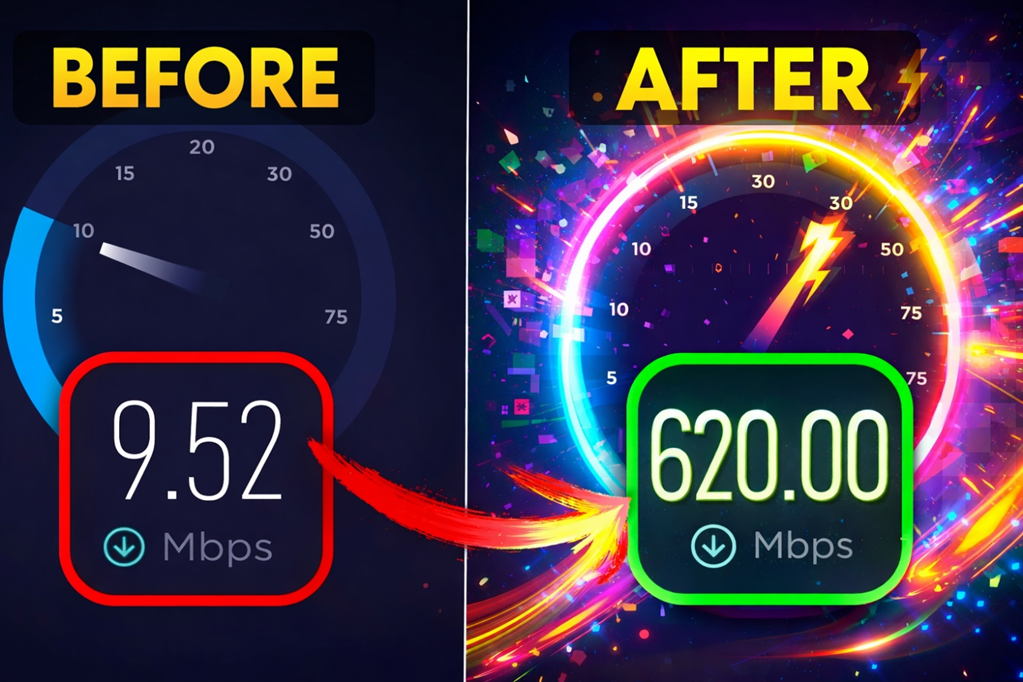
If you're currently frustrated because you're not getting the speed your internet provider promises in your contract, we completely understand how frustrating that can be. Slow download and upload speeds mean a lot of problems: slow file downloads, slow file uploads, and even latency issues while gaming.
At Dragon Blogger, we're tech experts, so today we'll help you with some tips to improve your internet speeds. However, if you're still having problems after checking all of these, you should definitely contact your internet provider to request software updates or an immediate technical visit.
Restart Your Router
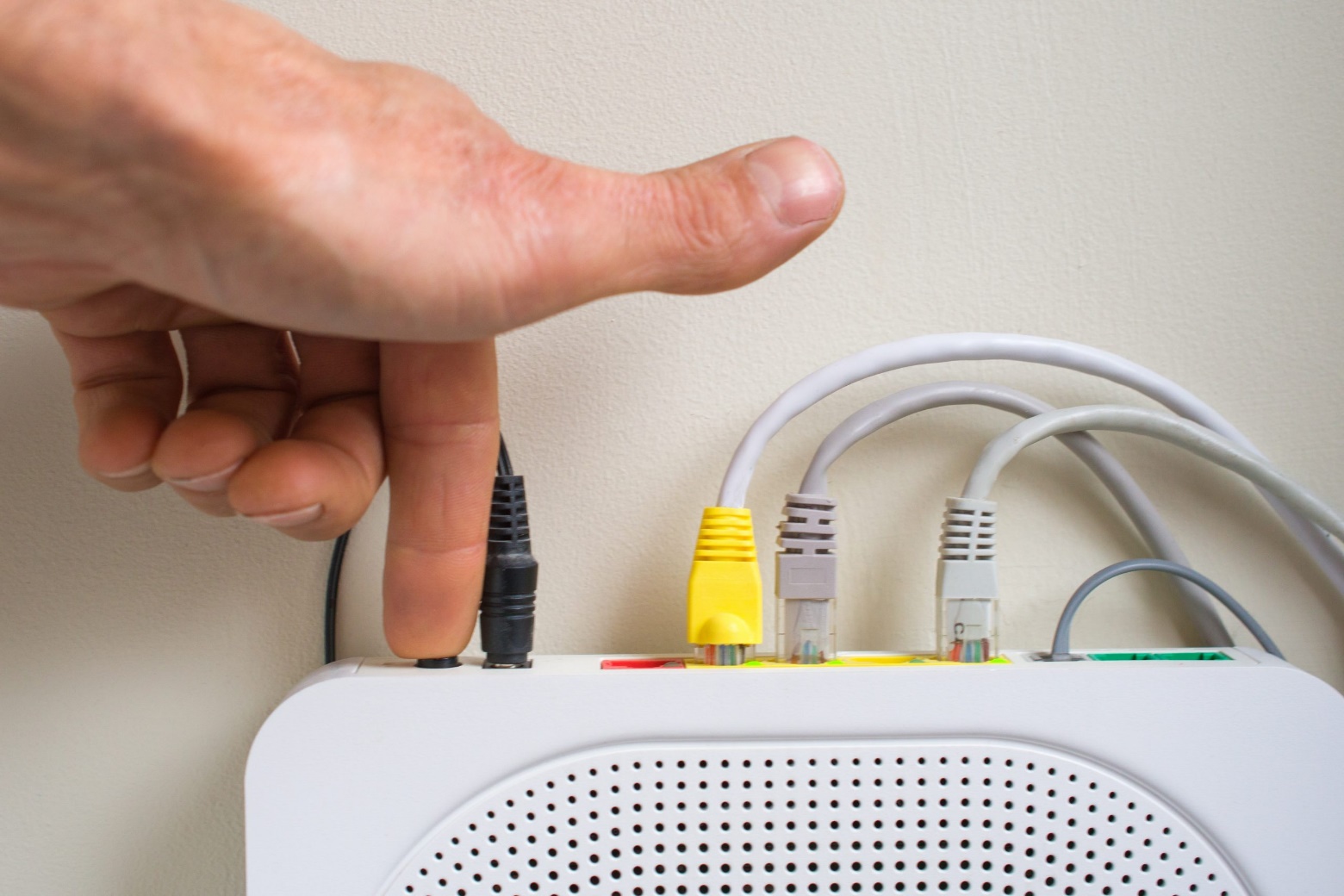
It might seem obvious, but you'd be surprised how many people panic and skip the most important first step when dealing with any software issue: restarting the device. So, our recommendation is that if you haven't already, restart your router.
Routers usually have a reset button somewhere, generally near the Ethernet ports. Press and hold it until you see the lights turn off and then back on. This means it's restarting successfully.
Wait about two minutes for your internet connection to be restored, then check your internet speeds. If you don't know how to run an internet speed test, don't worry, we'll explain it in the next step.
Run a Speedtes

Speedtest is considered the best way to quickly test your internet speeds, both upload and download. Simply go to the official Speedtest website from any web browser or download the free app available for iPhone, Android, macOS, and Windows.
Once on Speedtest, click “Start Test,” wait a few seconds, and check if the results match the speeds your internet service provider offers.
For greater accuracy, use a PC or laptop connected directly to the router via an Ethernet cable.
Verify Which Network You Are Connected To

Many routers offer dual-band connectivity at 2.4 GHz and 5 GHz, although some providers offer 6 GHz. If you don't understand how these frequency bands work, simply know that:
- 2.4 GHz offers stronger signal strength, allowing the internet to reach more distant areas of your home, but typically supports lower speeds. This is the same reason why security cameras and robot vacuums only work with 2.4 GHz networks.
- 5 GHz offers higher speeds, but the signal weakens quickly when there are walls or other obstacles in your home.
If your router and device allow it, switch frequencies depending on your location in your home. For example, if your room is far away, use 2.4 GHz if you're having connection problems with the 5 GHz band, or do the opposite if you're close to the router and want faster speeds.
Add a Mesh Wi-Fi System
If you find that your speed problem is related to the distance between your devices and the router, the best solution is to add a mesh Wi-Fi system to your home. This is because it's the only way to maintain truly high Wi-Fi speeds, unlike a signal booster.
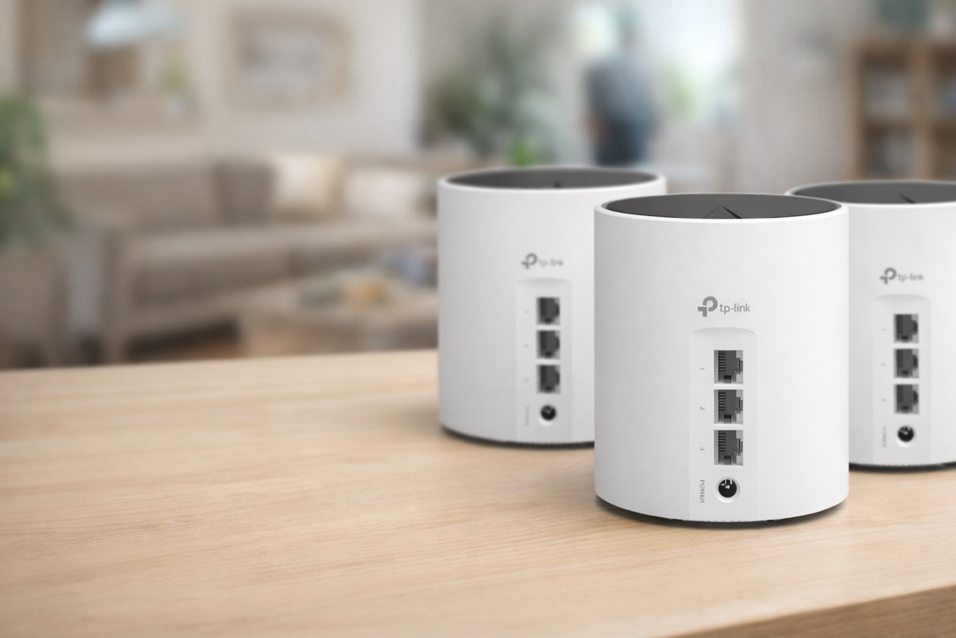
If you're interested in getting one, one of the most popular mesh Wi-Fi systems is the TP-Link Deco X55. It uses Wi-Fi 6 technology, covers up to 6,500 square feet, and supports speeds of up to 2,402 Mbps on the 5 GHz band and up to 754 Mbps on the 2.4 GHz band.
You can get it here on Amazon!
These were just a few recommendations. Remember that if you restart your router and the speeds you get on your PC or laptop via an Ethernet cable are far from what your internet provider should guarantee, you should contact them immediately for a solution.
We are influencers and brand affiliates. This post contains affiliate links, most which go to Amazon and are Geo-Affiliate links to nearest Amazon store.

My name is Joel! I love to read, I go to university like most people my age.
In my free time I usually train boxing, I love music, I also know how to play the guitar and the harmonica.