
We are influencers and brand affiliates. This post contains affiliate links, most which go to Amazon and are Geo-Affiliate links to nearest Amazon store.
One of the great things about the Kindle Fire device is that if you are fortunate enough to live next to a local library that allows you to rent eBooks, audibooks or even media then you can setup your Kindle Fire to rent from that library and have access to a ton of additional free content on your Kindle Fire. Note, the Kindle Fire cannot read ePUB books by default only PDF books which the libraries do offer as a rental option. But at the bottom of the article I provide full instructions on how to install an ePUB reader app on your Kindle Fire which takes only 5 minutes to setup.

To get started I suggest you check on Overdrive to see if there is a library within geographic location that rents eBooks or audiobooks. Just go to Overdrive and search based on your zip code. I am using a Phoenix area zip code for example in this photo, this isn’t my actual zip code.

I had a ridiculous amount of options to choose from, I think any library within like 50 or 100 miles allows you to rent eBooks. But if you drill down on any one of the libraries, you will see they all are just subsidiaries of the Phoenix Public Library.
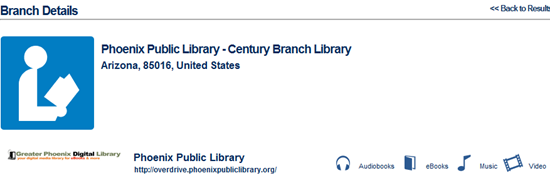
Here you can setup an account with your local library which often involves having to enter your library card and a PIN/Password associated with it. If you haven’t connected your card with the online rental system you may have to go down in person and set it up for the 1st time.

When renting eBooks from your local library you may be given the option to rent in ePUB or PDF format, the Kindle Fire can read either format but EPUB I think is better formatting for text sizing and way smaller file sizes.
For example:
Someday Rich was 2MB in ePUB format and over 11MB in PDF format

Now, Kindle Fire has no Overdrive application at this moment, but you can get any number of eBook readers. The Kindle Fire can also not read an ePub book natively, but you can easily download one of the following readers which support ePub books (or PDF).
Amazon Android ePub or PDF Reader Apps
- Aldiko Book Reader (Free)
- Bluefire Reader (Free)
- Kbobo eBooks (Free)
- Adobe Reader (Free)
- Legimi eBook Reader (Free)
- Djenné Book Reader (Free)
- ezPDF Reader ($2.99)
- Moon+ Reader Pro ($4.99)
- Mantano Reader ($7.49)
So renting eBooks from your local library is quick and easy and these instructions work for the Kindle Fire, Kindle and pretty much any android or iOS application out there just which applications you use would be different.
Okay, so you can’t download and install an ePUB reader for the Kindle Fire directly from the Amazon App Store yet, but you can follow these instructions to setup an ePUB reader on your Kindle Fire:
1. Download and install ES File Explorer from the Amazon Appstore.
2. Go into the settings for the Fire and switch “Allow Installation of Applications from Unknown Sources” to “On.”
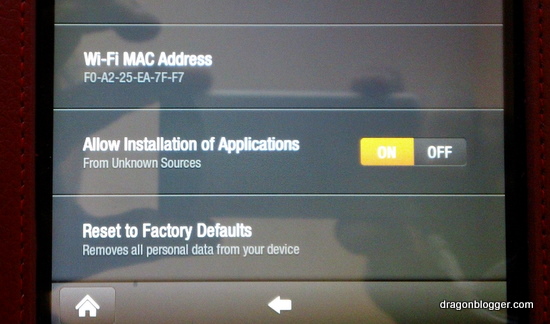
3. You’ll need to locate the appropriate file (an .apk file) for the app you want to install. If you want an epub reader, Aldiko is a good one and you can find a link to that and several other good apps here:
http://blog.the-ebook-reader.com/2011/11/15/ten-top-free-android-apps-for-kindle-fire-not-available-from-amazon/
4. Download the file you want to your computer (you may be able to directly download it onto the Fire, but I haven’t tried that).
5. Connect your Fire to your computer with the USB cable, and drag the .apk file to the “Downloads” folder on the Fire. (Create Downloads folder if you haven’t) When the file transfer has completed, disconnect the Kindle from the computer.

6. Open the ES File Explorer app on the Fire and go to the Downloads folder. Touch the .apk file you just transferred and install it.


Alternatively, if you are looking for instructions on how to convert epub to kindle format then you can read my article here:
https://www.dragonblogger.com/convert-epub-kindle-fire/
[easyazon_block asin=”B0051VVOB2″]
-Dragon Blogger
We are influencers and brand affiliates. This post contains affiliate links, most which go to Amazon and are Geo-Affiliate links to nearest Amazon store.

I have been obsessed with computers, tech, gadgets and games since the early 1980’s having grown up on the Commodore 64 and Amiga computers.
By day I work in the IT Security Industry and have been in IT for over 20 years. On my spare time I am a Vlogger, Blogger, Streamer, Gadget Reviewer, affiliate marketer, influencer and entertainer. I am also an avid movie fan, TV Show fan, Anime fan, video game fan and fan of trying anything and everything new.