
We are influencers and brand affiliates. This post contains affiliate links, most which go to Amazon and are Geo-Affiliate links to nearest Amazon store.

If you're looking to monitor your graphics card temperature but still don't know how to do it quickly, this article will be perfect for you because we'll show you how with the help of GPU-Z, a free tool developed and distributed by TechPowerUp.
GPU-Z is basically an information-gathering utility that reads data directly from your graphics card. In other words, it relies on built-in sensors to provide temperature-related information, although it can display plenty of other details as well. Still, most people simply want to know whether their GPU is running cool or hot.
You can actually do this through your graphics card software, whether you're using Nvidia or AMD, but GPU-Z remains a popular choice because it's accurate and lightweight. So you can head over to its official website and download it. GPU-Z works on Windows 11, 10, 7, and even XP, making it a very versatile tool.
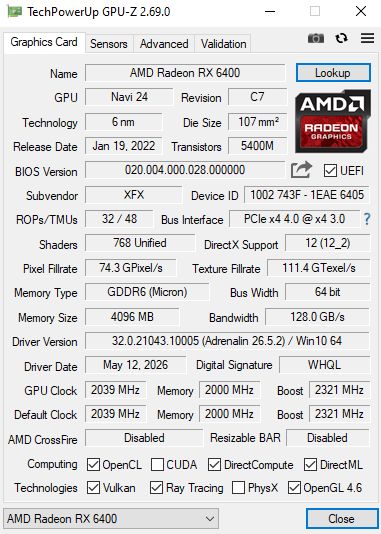
Once you open the program, the first thing you'll see is information about your graphics card. In my case, I'm using a basic AMD graphics card, the Radeon RX 6400, a 4 GB GDDR6 GPU that works well for everyday tasks and for playing a few games such as DBD, which is pretty much the only game I play from time to time.
Interestingly, just two days ago I started hearing strange noises coming from my graphics card, and yesterday the fan unexpectedly stopped working. I tried fixing it, but it seems that something is preventing it from spinning properly.
The RX 6400 is a single-fan graphics card, so under light usage it usually stays around 40°C. However, you might be surprised by how much the temperature has increased now that the fan is no longer working correctly.
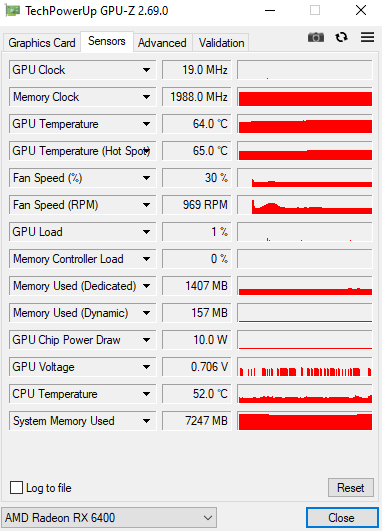
As you can see, the GPU is sitting at 64°C while the hotspot is at 65°C, which is relatively high for an idle state. Normally, idle temperatures should be much lower. Once again, the faulty fan has caused temperatures to rise by more than 30°C, and I've actually seen them exceed 80°C on several occasions. The only reason it's lower right now is because the ambient temperature is a bit cooler at the moment.
If I started playing something like Dead by Daylight, the temperature would probably climb to 100°C without much trouble, considering it already reaches around 80°C while idle. Without checking this information, I could easily overlook the problem and continue gaming while the GPU operates at extreme temperatures that could lead to an unexpected shutdown and shorten its lifespan.
It's incredible how, while writing this article, the temperature quickly increased and is now sitting at 77°C. Once again, this fan issue is something I'll need to address as soon as possible to avoid putting the GPU at risk.
What are normal GPU temperatures, and when do they become high or dangerous?
- 30°C – 45°C: Normal (idle)
- 45°C – 65°C: Light usage
- 65°C – 75°C: Normal while gaming
- 75°C – 85°C: High
- 85°C+: Critical (overheating risk)
So, if you notice unusually high temperatures on your GPU, you may need to perform maintenance sooner rather than later, whether that means checking your fan performance or replacing the thermal paste if it's been a long time since the last application.
We are influencers and brand affiliates. This post contains affiliate links, most which go to Amazon and are Geo-Affiliate links to nearest Amazon store.

My name is Joel! I love to read, I go to university like most people my age.
In my free time I usually train boxing, I love music, I also know how to play the guitar and the harmonica.