
We are influencers and brand affiliates. This post contains affiliate links, most which go to Amazon and are Geo-Affiliate links to nearest Amazon store.
Working on a computer for hours every day can make something as simple as a mouse surprisingly important. A basic mouse might be perfectly fine for checking email or casually browsing the web, but once your day involves spreadsheets, photo editing, video timelines, long documents, multiple monitors, and dozens of applications, those little limitations start becoming much more noticeable. Slow scrolling, constant clicking sounds, awkward shortcuts, and repeatedly moving your hand across the screen can all add small interruptions to your workflow.
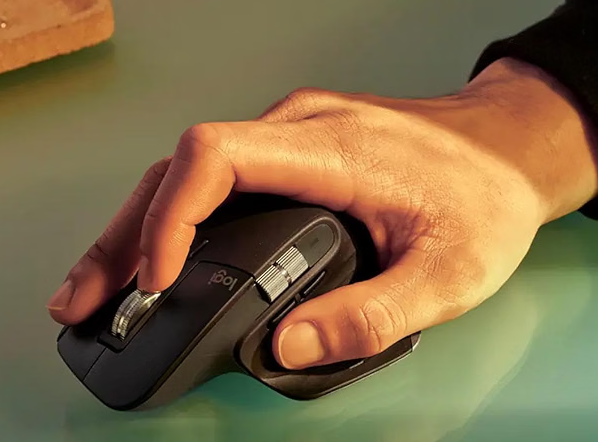
The Logitech MX Master 4 is designed for people who spend a serious amount of time behind a computer and want their mouse to do more than simply point and click. It takes the familiar productivity-focused design of Logitech’s MX Master lineup and adds several features meant to make navigating Windows and macOS faster, more comfortable, and more customizable.
One of the biggest additions is the Haptic Sense Panel. Instead of relying only on visual feedback from your computer screen, the mouse can provide subtle physical feedback during supported actions. You might feel feedback while navigating shortcuts, switching devices, adjusting certain controls, or interacting with compatible applications. Logitech also allows the haptic intensity and behavior to be customized through its software, so users who enjoy tactile feedback can make more use of it without forcing everyone into the same experience.
Pressing the Haptic Sense Panel can also open Logitech’s Actions Ring when Logi Options+ is installed. Think of this as a customizable shortcut menu that appears near your cursor. Instead of moving across the screen to find a frequently used tool, you can bring useful commands closer to where you are already working. Depending on the application, this can make repetitive actions feel noticeably faster once you have configured the shortcuts around your own workflow.
Precision is handled by Logitech’s Darkfield sensor, which supports sensitivity from 200 up to 8,000 DPI. Higher sensitivity can be particularly useful for anyone using a high-resolution display or multiple monitors because it reduces the amount of physical mouse movement required to travel across a large desktop. The sensor is also designed to work across a wide variety of surfaces, including compatible glass surfaces, making the mouse easier to use when you are working somewhere other than your normal desk.
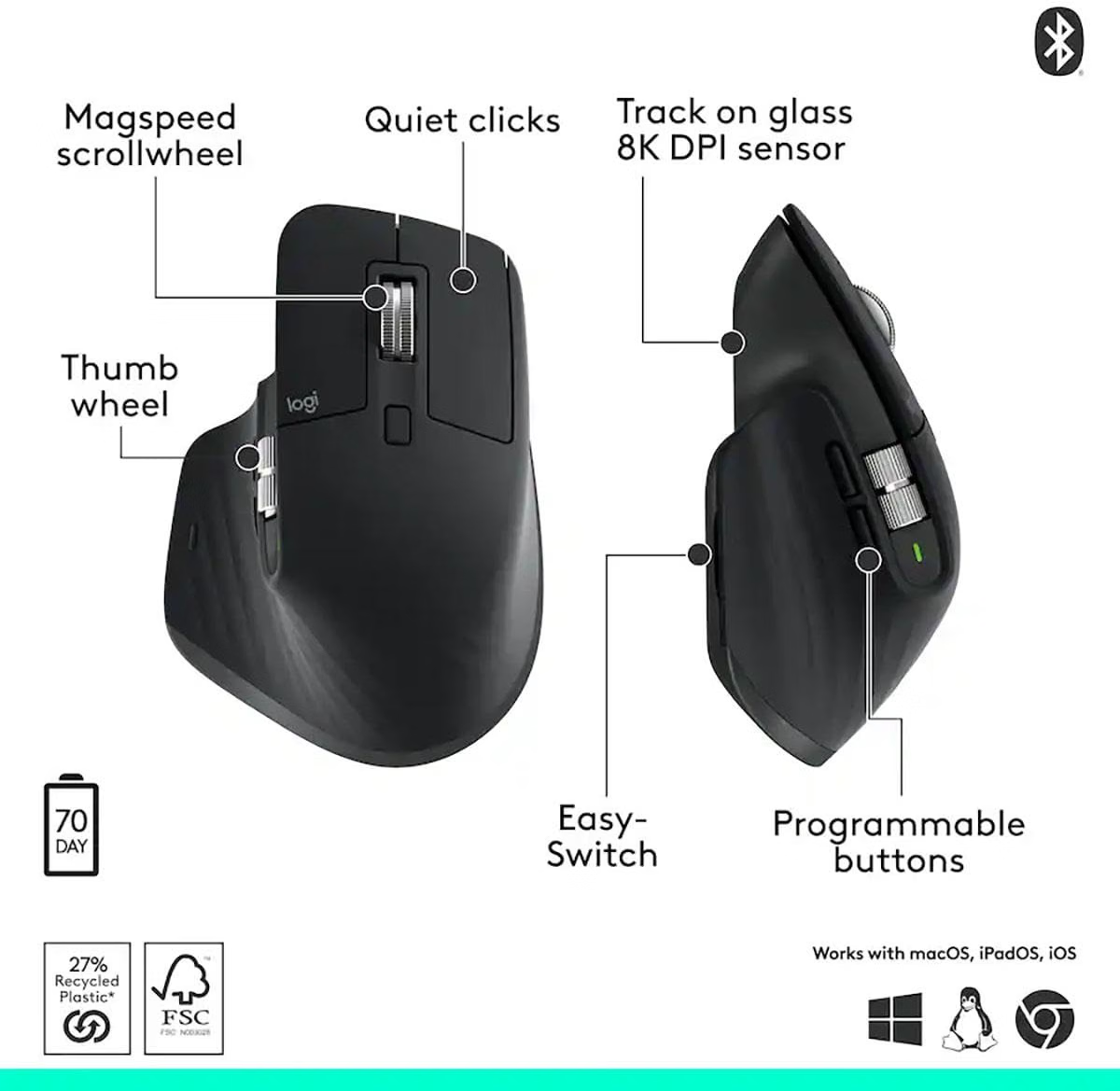
Scrolling remains one of the strongest reasons to consider an MX Master mouse. The MagSpeed scroll wheel can move through long pages and documents extremely quickly while still allowing controlled line-by-line movement when precision is more important. Anyone who regularly works with large spreadsheets, long WordPress articles, research documents, or lengthy webpages can appreciate being able to quickly jump through hundreds of lines without repeatedly dragging a scrollbar.
There is also a dedicated thumb wheel for horizontal scrolling. This can be especially handy in applications with wide timelines or spreadsheets where information extends well beyond the visible portion of the screen. Once you get used to navigating horizontally with your thumb instead of hunting for a scrollbar, it can become one of those features that is difficult to give up.
The MX Master 4 also uses Logitech’s Quiet Click technology to reduce the amount of noise generated by regular clicking. That matters more than you might expect when you work in a shared office, record audio near your computer, participate in video meetings, or simply spend eight hours hearing mouse clicks beside you.
Multiple-device support is another useful feature for people with more than one computer. The mouse can connect through Bluetooth Low Energy or the included Logi Bolt USB-C receiver, depending on your setup. Easy-Switch functionality allows you to move between supported connected devices without keeping a separate mouse beside every computer.
Battery life is rated for up to 70 days on a full charge, although actual runtime will naturally depend on how the mouse is used. When power does run low, Logitech says a quick one-minute charge can provide around three additional hours of use. Charging is handled through USB-C, making it easy to top up alongside other modern devices.
The biggest reason to consider the MX Master 4 is not any single specification. It is how all the small features work together. Faster scrolling saves a little time. Custom shortcuts save another few seconds. Quieter clicks reduce distractions. The thumb wheel makes wide documents easier to navigate. Haptic feedback adds another layer of interaction. None of these features alone will completely transform your workday, but together they can make a computer feel noticeably easier to control.
For someone who only occasionally uses a computer, the extra functionality may be unnecessary. For creators, office workers, programmers, editors, researchers, and anyone who spends most of the day working at a desktop, however, the Logitech MX Master 4 is built around exactly the kinds of repetitive tasks you perform every day.
If your current mouse feels like the most basic part of an otherwise capable workstation, upgrade your everyday workflow and check out the Logitech MX Master 4 on Amazon

We are influencers and brand affiliates. This post contains affiliate links, most which go to Amazon and are Geo-Affiliate links to nearest Amazon store.

I have been obsessed with computers, tech, gadgets and games since the early 1980’s having grown up on the Commodore 64 and Amiga computers.
By day I work in the IT Security Industry and have been in IT for over 20 years. On my spare time I am a Vlogger, Blogger, Streamer, Gadget Reviewer, affiliate marketer, influencer and entertainer. I am also an avid movie fan, TV Show fan, Anime fan, video game fan and fan of trying anything and everything new.