
We are influencers and brand affiliates. This post contains affiliate links, most which go to Amazon and are Geo-Affiliate links to nearest Amazon store.
Whether your PC was bought in a store or you built it on your own, you have a motherboard in there. Like everything, there are different types of motherboards and with them different quality levels of motherboards. Today’s review is on EVGA’s Z270 FTW K 132-KS-E277-KR motherboard, it’s got tons of features and specs, but does it have the quality to be considered a high-end gaming board?
Don’t be misled though when I say a gaming board and you are not a gamer, a gaming board can do so much more than just game. A gaming board, video card, processor and the likes means that it can handle any load. Games are so demanding on a PC as you raise the resolution, eye candy and more while you do other tasks in the background puts a lot of stress on the PC.
A standard PC can do all of this with lower resolutions and no eye candy due to low GPU performance and a reduced CPU core set, less UBS ports, SATA ports, etc. A gaming PC is a high-performance workstation minus the ECC RAM and potential compute performance.
Before we can comment on how good or bad this board is, we have to check out what features and specifications it has, so let’s start there.
Features and Specifications
- CPU Compatibility: Intel Kaby Lake-S and Intel Skylake Processors
- Socket: Intel Socket 1151
- Chipset: Intel Z270
- Form Factor: ATX 12in (304.8mm) x 9.6in (243.8mm)
- Multi-GPU Support Supports NVIDIA -Way GPU SLI Technology + PhysX / AMD 2-Way CrossFire X Technology
- Memory: 4 x DIMM, Dual-Channel DDR4 3600Mhz+ and up to 64GB
- Capacitors: POSCAP/Solid State
- Ethernet: 1 x Killer E2400 / 1 x Intel Gigabit I219-V
- Audio: 8 Channel Realtek HD ALC1150+ Optical
- Display Outputs: 1 Display Port 1.2 / 1 x HDMI 1.4
- PCB: 6 Layer
- PCI-E 3.0/2.0 Slot Arrangement
- 1 x 16 (x16/x8)
- 1 x 16 (x8)
- 1 x 16 (x1)
- 1 x 4
- 1 x 1
- NVMe Support
- SATA
- 2 x Native SATA Express 16.0Gb/s ports
- 6 x Native SATA 6Gb/s
- 1 x U.2 Port 32Gb/s
- 2 Support
- 1 x M.2 Key E
- Intel Optane Memory Readys I will remove the rear case I/O, so don’t be
- 2 x M.2 Key M
- 1 x M.2 Key E
- USB
- 6 x USB 3.0
- 4 x USB 3.0 (2 x Headers)
- 2 x USB 2.0 (1 x Header)
- 1 x USB 3.1 Type C
- 1 x USB 3.1 Type A
- Package Contents
- Motherboard
- EVGA Driver and Software Disc
- Rear Case I/O Panel
- Rear Case I/O Cover
- 2 x SATA 6G Data Cables
- 2-Ways SLI Bridge
- Enthusiast Stickers
- Case Badge
- Manual
OK, I know that’s a lot of specifications to go through, so now let’s get into an unboxing so we can see what comes in the box.
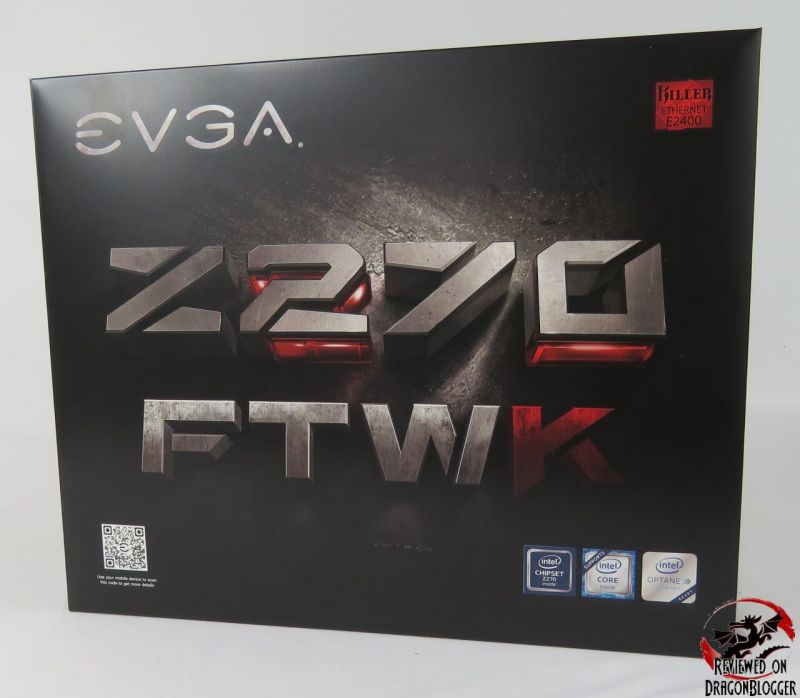
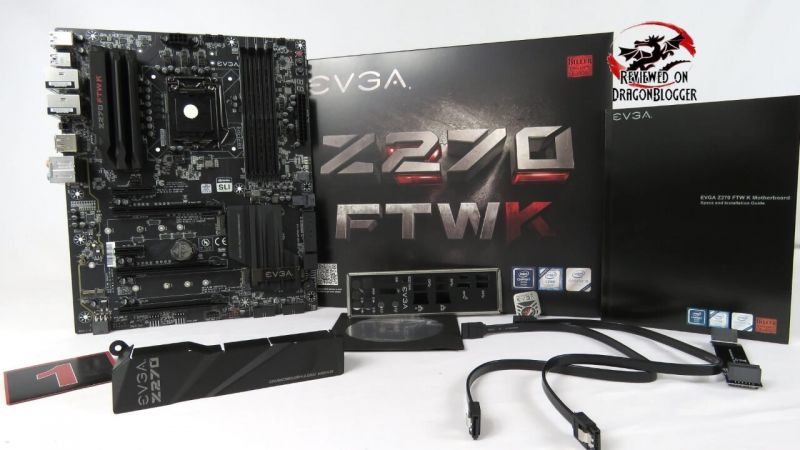
Comes with a few nice things, but let’s check each out in detail.
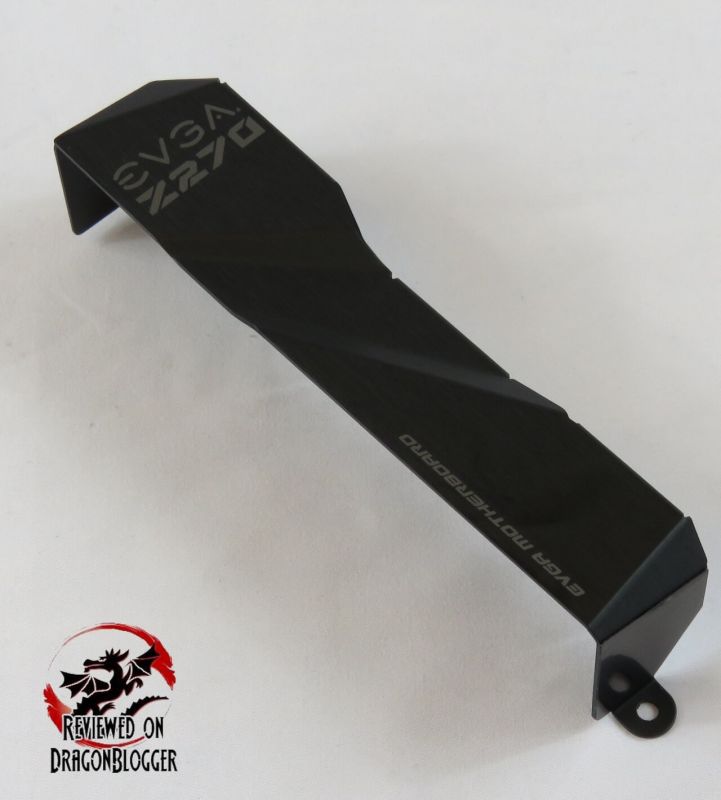
Includes a Rear Case I/O cover. This covers up the ethernet, USB, audio and all the little things that goes up on the back covered by the Rear I/O shield, just to make the inside a little prettier. Both sides are held down by the motherboard screws.
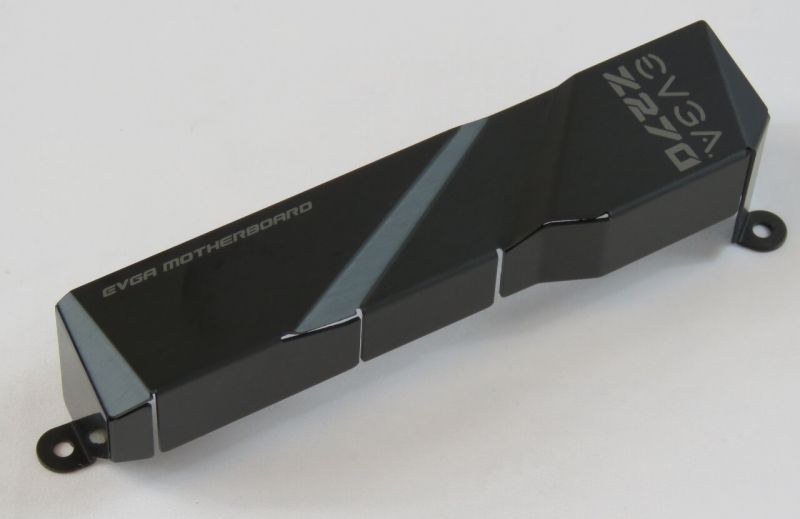
I like looking at everything PC related, but it does make it look a little sexy with it on. This is optional of course.
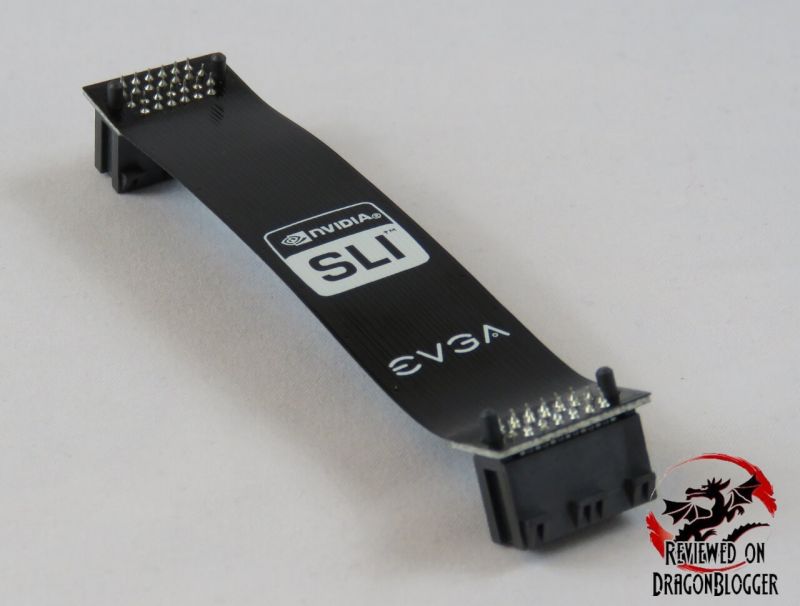
This board is 2-Way SLI compatible and EVGA included a 2-Way SLI bridge that is 4 inches long (25.4mm). Even though AMD’s CrossFire is compatible… EVGA is an NVIDIA partner, not an AMD so it does not come with a CrossFire bridge.
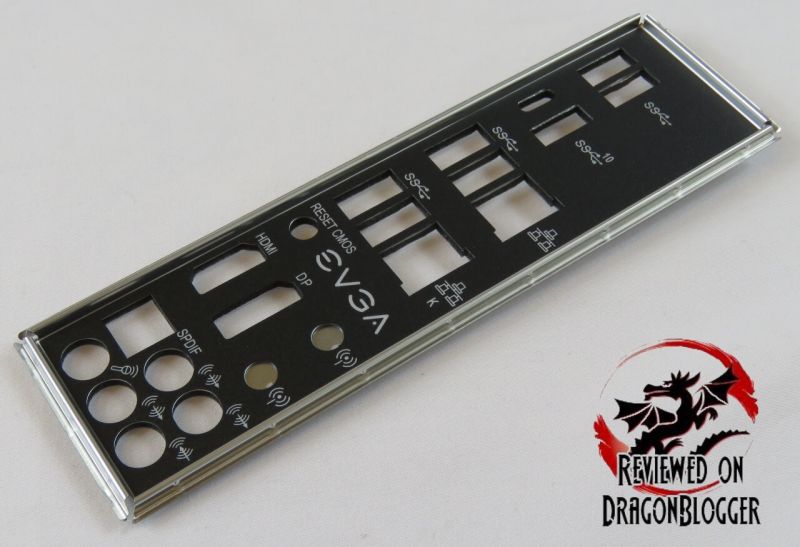
The I/O shield, not only serves to help a bit keeping dust, bugs and dirt out of your case (so does cleaning your case and house) but it offers RFI (Radio Frequency Interference) and EMI (Electro Magnetic Interference) protection from your inputs. The shield helps a bit as well in keeping your case with its positive or negative air pressure, however you prefer it work.
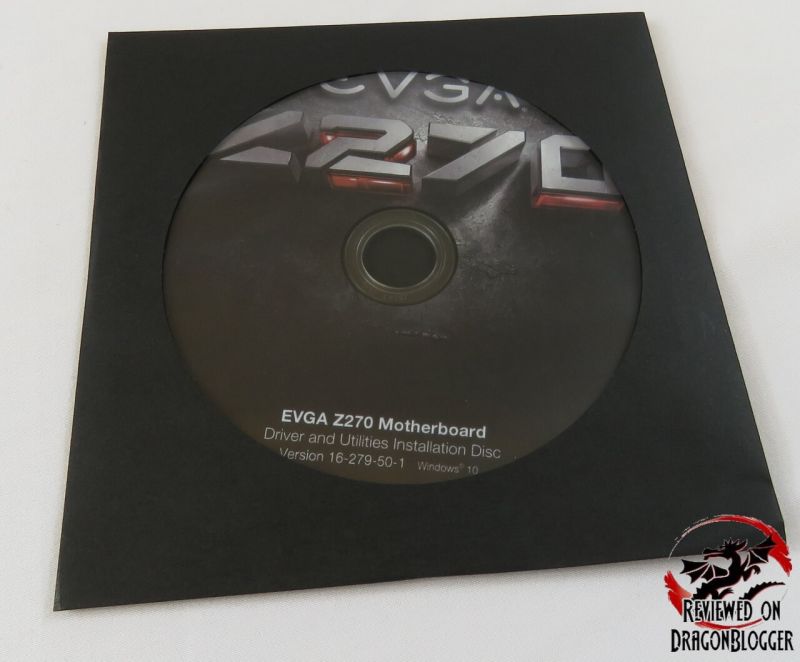
The EVGA Z270 Driver and Utilities installation disc contains all of the drivers for your motherboard (audio, Chipset, Framework, Graphics, Intel Rapid Store, LAN, ME, RAID, SATA, Thunderbolt and USB3.1) but it also contains the manual for the motherboard in PDF format. Generally, I do not use the disc’s as the minute they are printed they are already out of date. I recommend once you receive your board and install windows on it, download the drivers off of EVGA’s website, the Intel Ethernet port works fine without drivers.
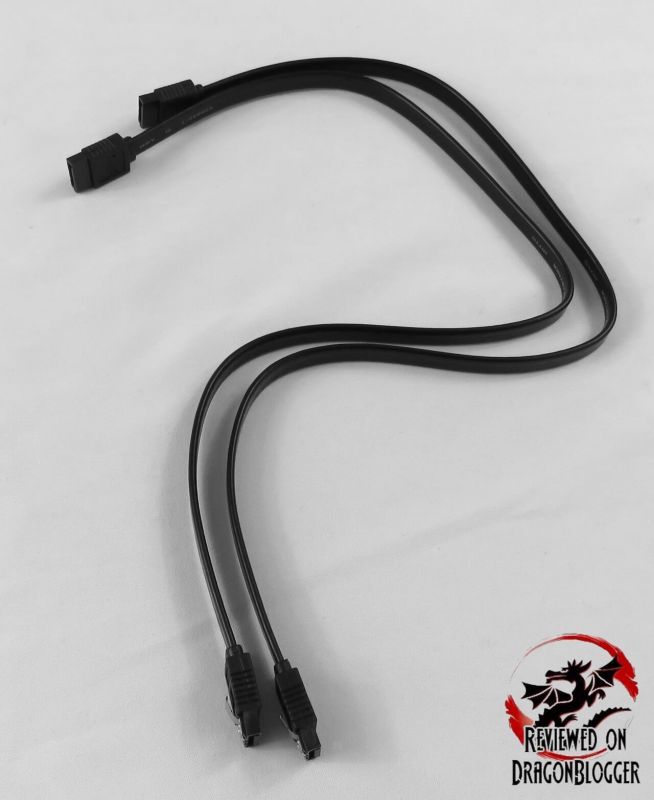
The package includes 2 x 6G SATA cables, but these are the nice ones.
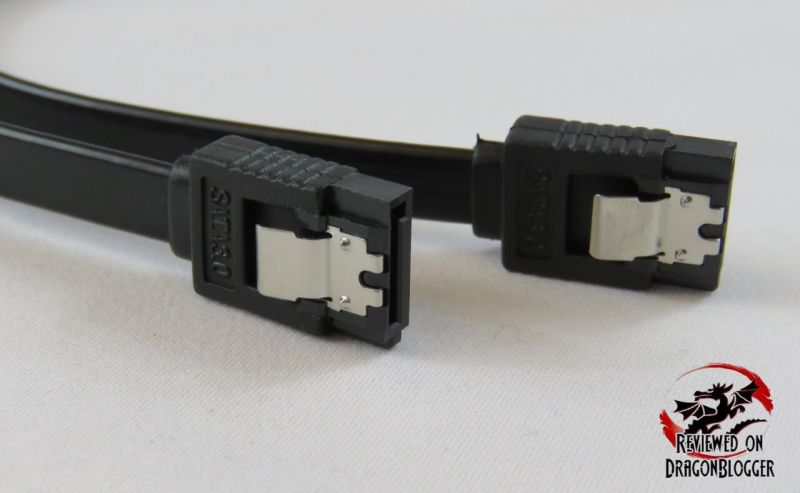
The ones that have the metal clip at the end, I like those as they help keep the cable from slipping out by mistake when moving the computer.
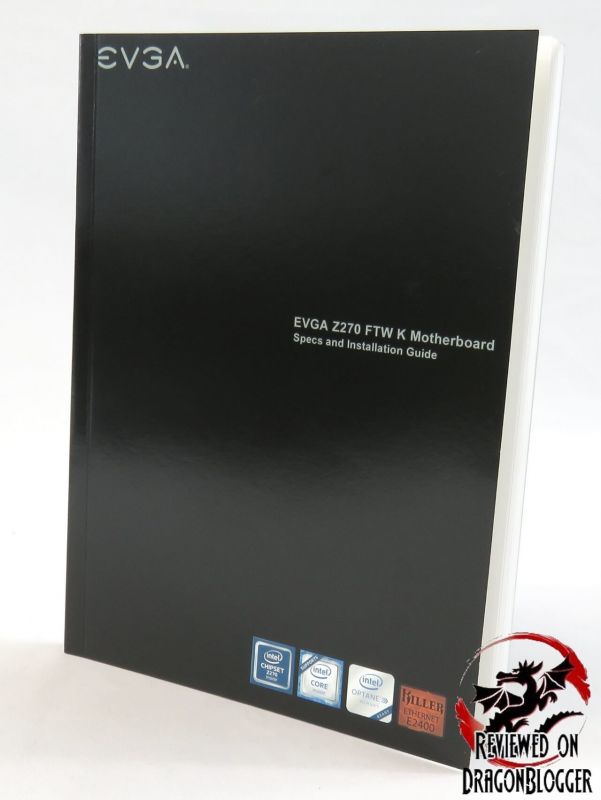
Even though they include the manual in a PDF format on the CD, they also include the physical manual. I do recommend reading it before you install the board as it will answer all of your questions, but so will the installation videos I have done installing this board into a chassis and of course this review.
They include as well this little case badge, a very nice little case badge. While it is nice and shiny and feels like metal, it is actually a very strong plastic backed with 3M adhesive to stick onto your case.

This board does have a M.2 slots, and in case you lose one of the screws that hold the card down they include and extra one, very thoughtful.
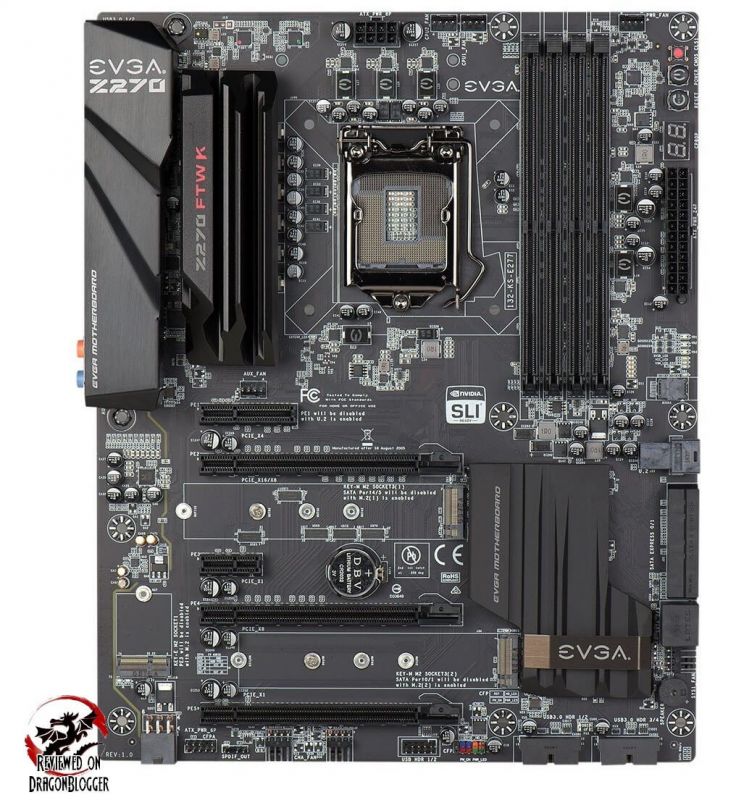
Then finally we have the motherboard itself. Let’s go over some of the aspects of the board close up. For this I will remove the rear case I/O, so don’t be surprised if in the next few shots you don’t see it. There’s going to be a lot of information here and in the next few pages.
Continue: Board Design Layout and Features close up
[nextpage title=”Board Design Layout and Features close up”]
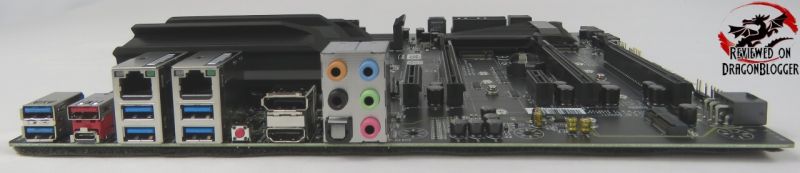
We will make a round trip of the board. We will start off on the Rear I/O (Input/Output).
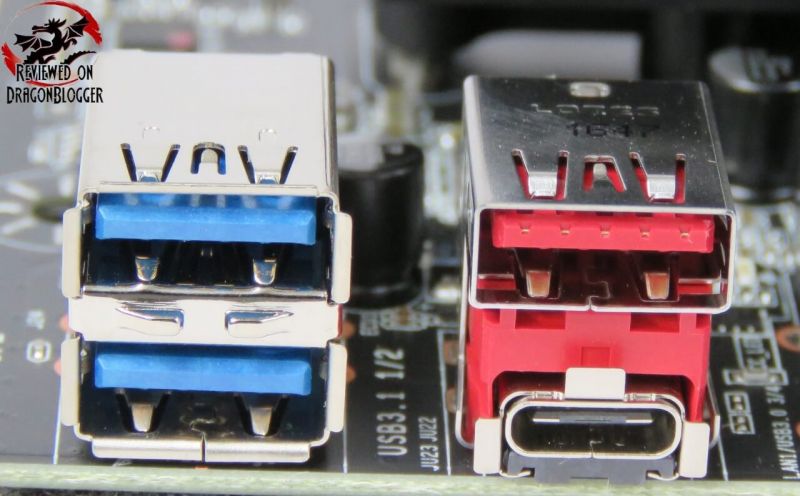
On the left, we can see USB 3.0 ports 1 and 2. On the right, we find USB 3.1 Type A (the wider red one on the top) and USB 3.1 Type C (the thinner on one the bottom). USB 3.1 is still relatively new and not totally wide spread just yet but more and more devices are beginning to adapt to them.
USB 3.1 Type A, doubles the speed of USB 3.0 at 10Gbps and can provide up to 100Watts for charging and powering devices and is fully backward compatible. While USB 3.1 Type is is nice, is still suffers from the big draw back from the connection of USB 1.1, USB 2.0 and USB 3.0, you will plug it wrong 50% of the time. USB 3.1 Type C however can plug in no matter how it is connected and can even be used to power laptops, carry Display Port and HDMI video signals and still provide a matter of transferring data, it is an amazing technology.
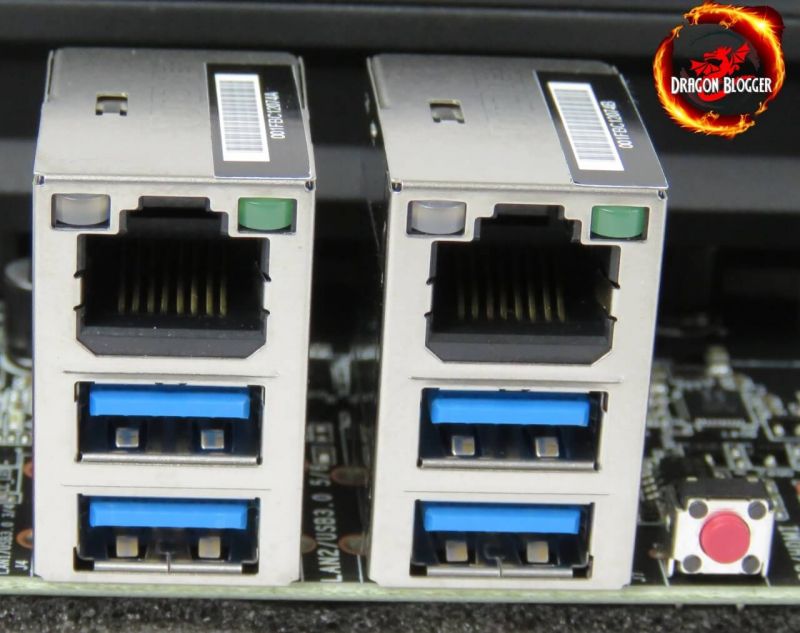
Moving on a little more to the right, we 2 x Ethernet ports and 4 USB 3.0 ports. The left Ethernet port, is the Intel i219 Gigabit Ethernet port and the one on the right is the Killer E2400. The Killer E2400 Gigabit Ethernet Controller is not just a plain Ethernet adapter, it allows the network adapter to detect and control network traffic to provide more priority to the things that matter to you.
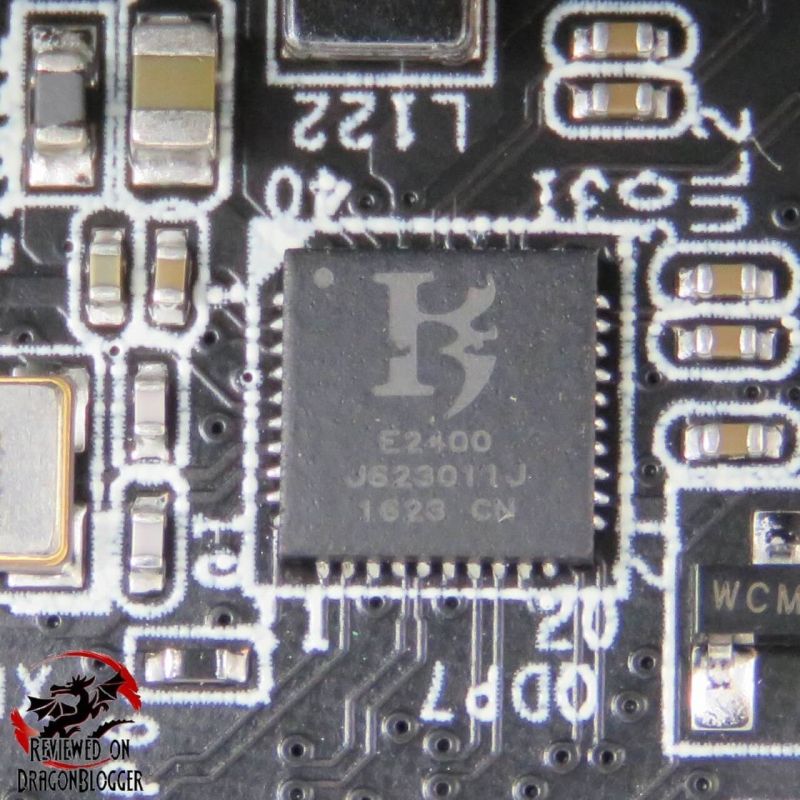
This is the Killer E2400 chip. With the Killer E2400, you can improve (reduce) latency, jitter and video stutters as it accelerates your critical network traffic. The software, in addition to the adapter, provides 2 additional network priority levels and 7 levels of application and website traffic prioritization, but we will go over thing a little more later in the review. The Intel i219 Ethernet controller, while a good controller, is a basic adapter.
The 4 additional USB 3.0 ports, are standard USB 3.0 Ports and then there is a little red button on the bottom right hand corner of the picture. The little red button is an BIOS/CMOS reset button, which allows you to manually reset the BIOS in the unfortunate event that you set a BIOS setting incorrectly. Back in the day, this was done with jumpers on the motherboard, usually near the battery, or manually removing the battery on the board, but this little button saves so much time.
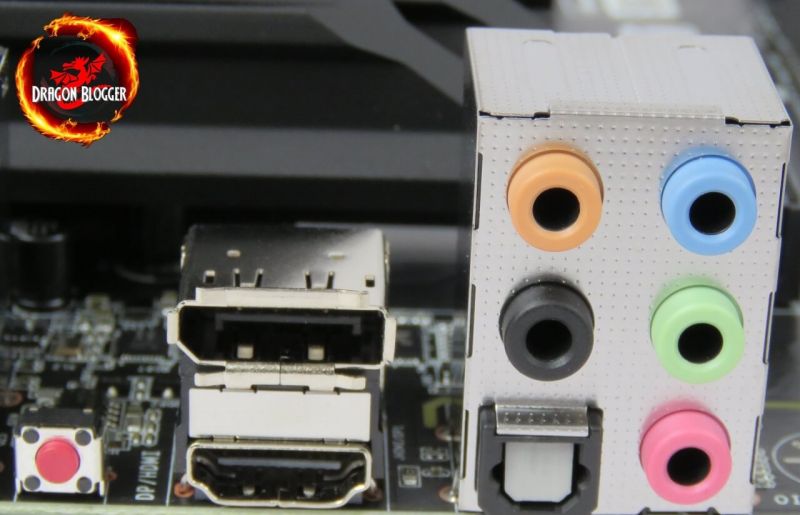
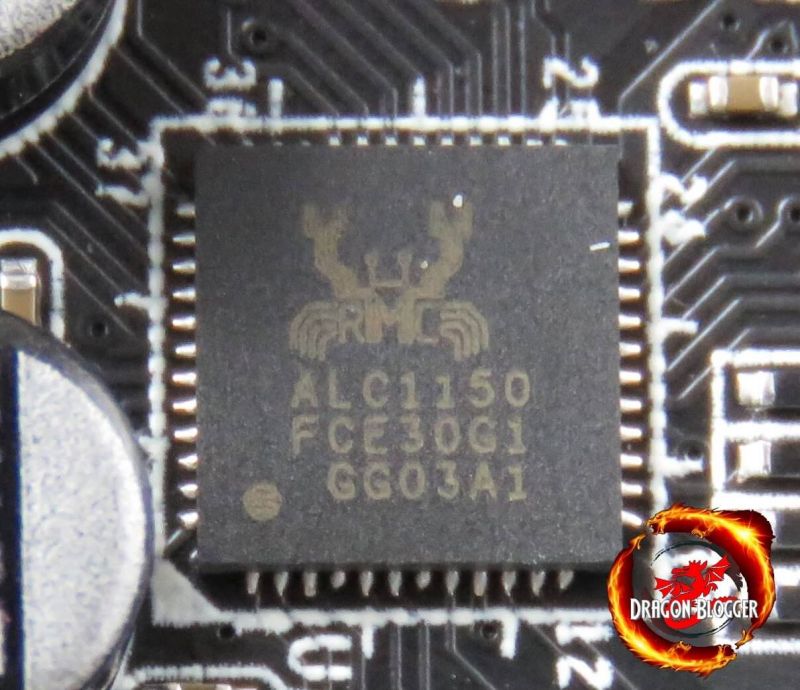
To the right of the BIOS/CMOS reset button, we can see a on the bottom an HDMI 1.4 port and above it a Display Port 1.2 (DP). Mind you, EVGA sells video cards and they more than want you to buy their video cards, but as you are saving to buy one of them they allow you to use the integrated video, of course if the CPU you buy supports integrated video. To the right of that, we can see the 8 Channel Audio, controlled by the ALC1150 controller.
Green is for Left and Right (Stereo) line out, Blue is for Analog Line in and, Black for Surround Left and Right and Orange is for the Sub and Center Channel speaker. The Pink is for a microphone the oddly shaped almost box connector is the Optical connector. The optical connection usually has better audio when paired with a surround sound speaker system that support optical and a nice TOSLINK cable.
Behind the rear audio ports, we find the controller hidden on the board.
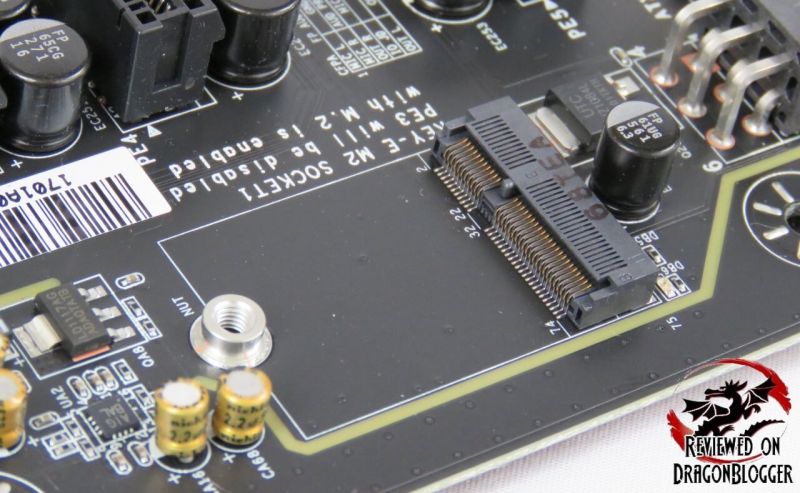
To the right of the rear I/O panel, on the board, we find the Key-E M.2 Socket 1. M.2 Key-E is used for devices like Wi-Fi and Bluetooth cards, an M.2 SSD will not fit here, it is a Key-M slot. Installing a card here will disable PCI-e slot 3, which thankfully is a X1 PCI-e slot right under where the video card would go.
Another cool thing to mention, more in detail later but that green line you see travelling along the side of the M.2 Slot, actually serves for a visually aesthetic purpose. Again, we will go over that a little later in the review, now back to M.2.
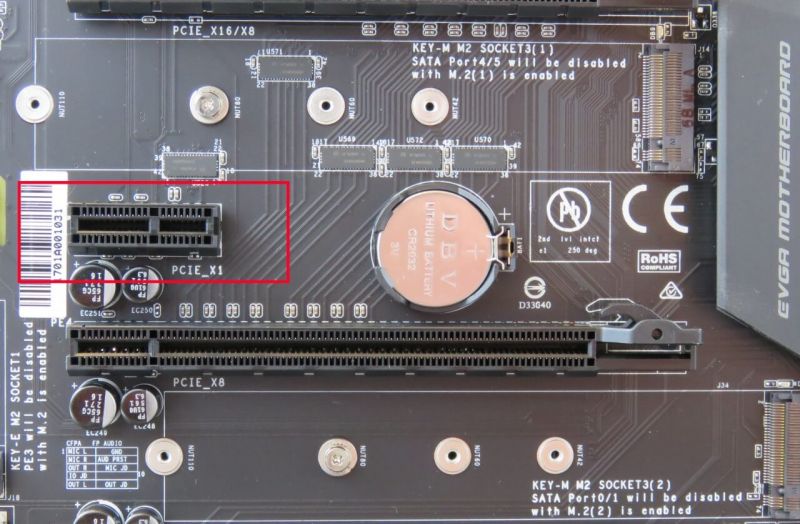
This is PCI-e Slot3, the x1.
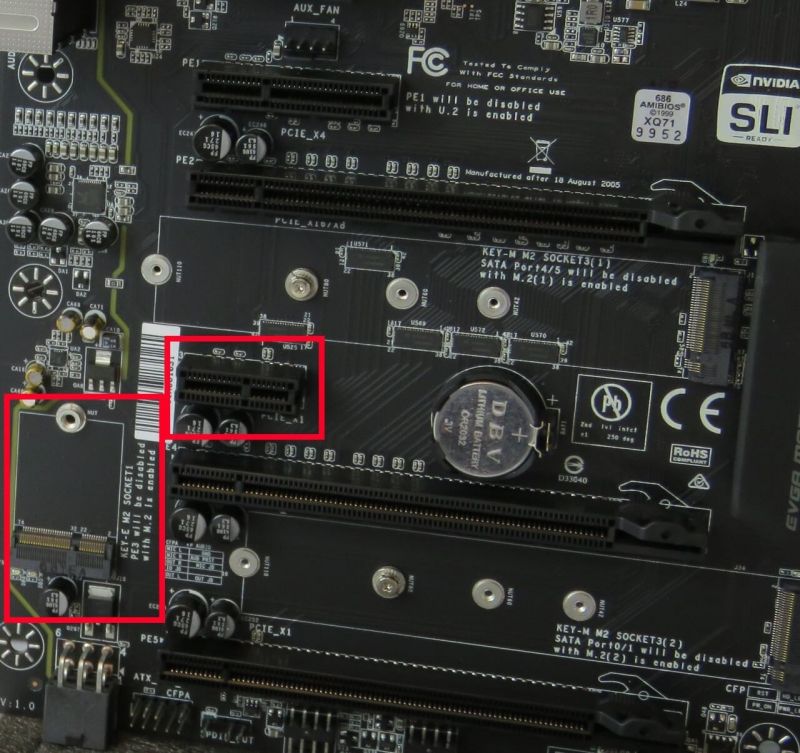
For a different angle of where it is.
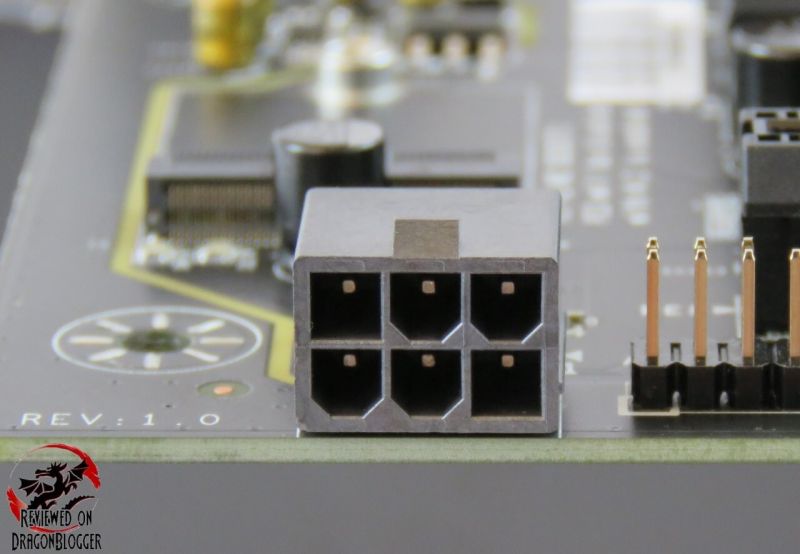
On the bottom left hand corner of the board, we find an oddly placed, 90° angled 6-Pin PCI-e connector. This connector provides additional PCI-e connector provides additional power to the PCI-e slots, designated for 3 or 4-Way SLI configurations, sort of odd they would include it in this board being that it is said to only support 2-way SLI.
Even though the board has 3 physical x16 PCi-e slots, the first x16 slot is a x16 or a x8. It is x16 if it is the only slot populated. The 2nd PCI-e slot is a x8, if there is a card there as well, that is when the 1st slot will switch to a x8, so that both cards can run in SLI. The 3rd physical x16 PCI-e slot is electrically a x1 slot, so it will not be able to run in SLI.
Skylake processors will only support up to 20 PCI-e lanes. The PCH (formerly known as south bridge) will support 24 additional PCI-lanes but those are SATA devices. Being that the PCI-e lanes are taken from the CPU, you can see there is no way a Skylake processor will support 3 x Video cards, even having all at x8.
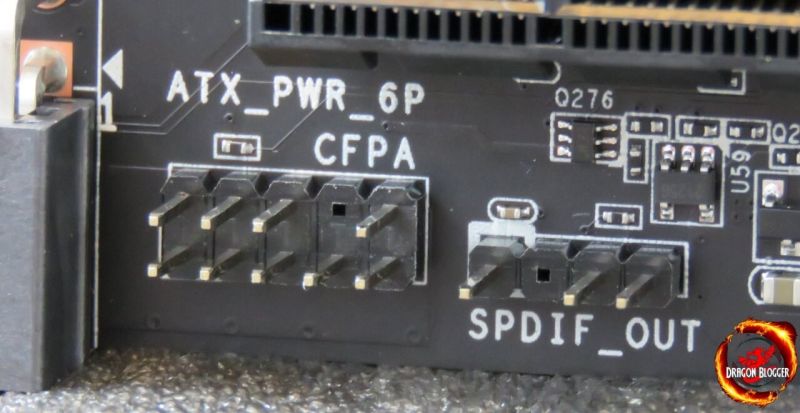
To the right of the 6-pin PCI-e connector, we find the Front Panel Audio header and the SPDIF_Out header.
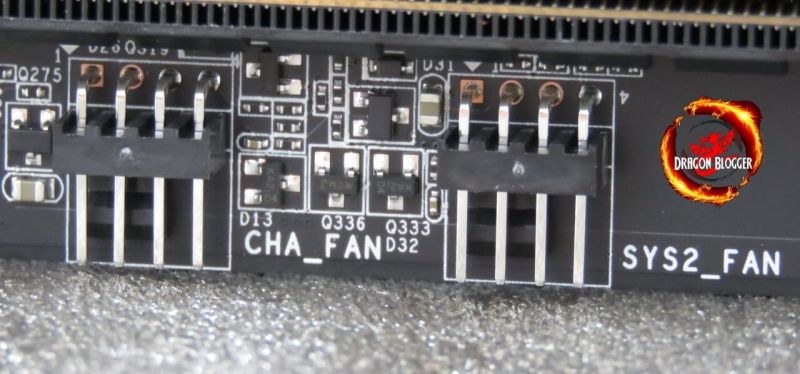
To the right of that, we have a Chassis Fan 4 Pin header and a system 2 fan header.
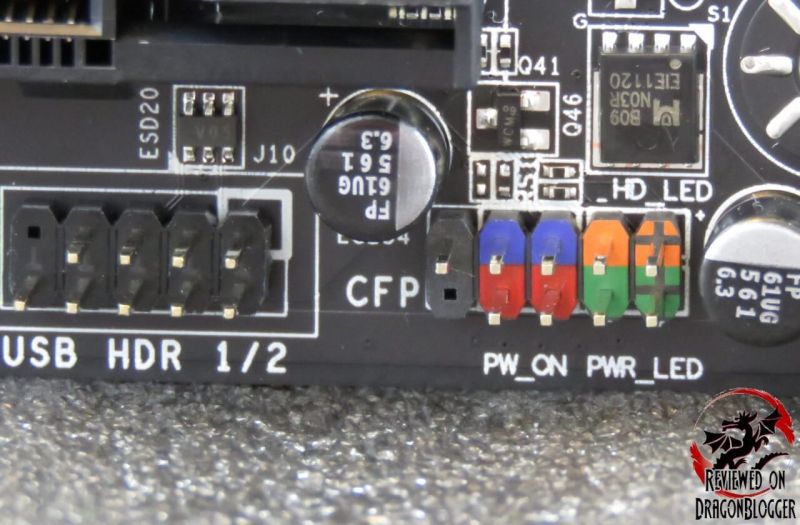
To the right of that, we have the USB 2.0 header, only USB 2.0 header on the board which is a bit disappointing, if you have 4 front panel USB 2.0 devices, but I have a fix for that coming soon.
Next to that we have the Front Panel headers for things like your Power button, reset button, Power LED, HD Activity Light. Here is a diagram off of the EVGA Manual for this board
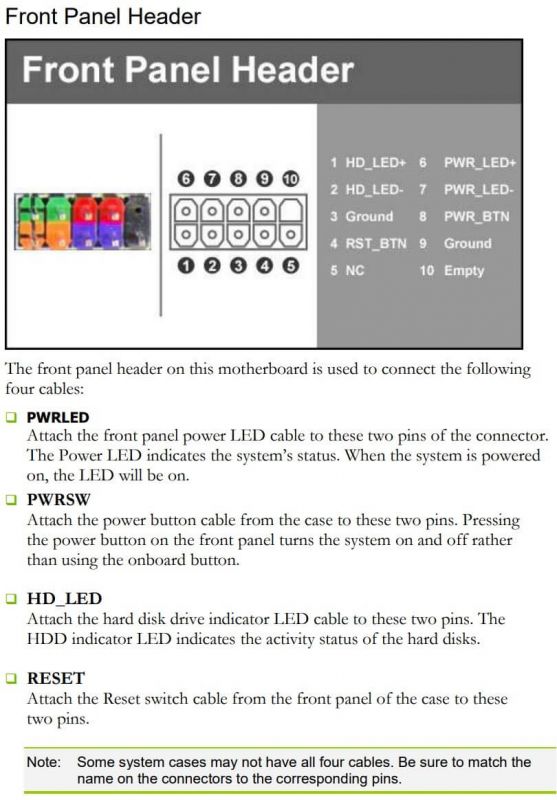
Very important connecting these when building your PC, which I will go over later.
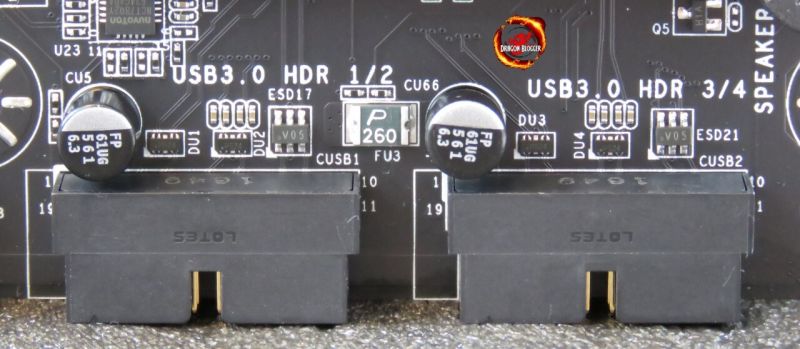
This one makes me a little happy, but we have 2 x USB 3.0 headers, for 4 additional USB 3.0 ports.
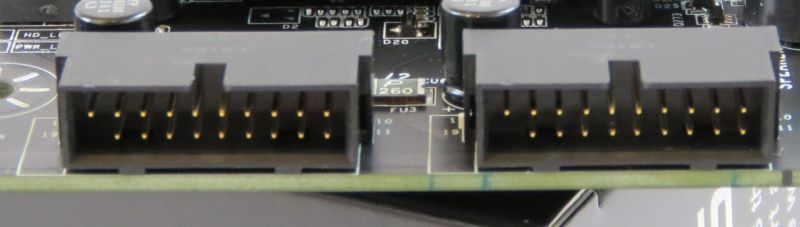
Of course, this would mean you would need 4 USB ports on your case, but if not, you can use this for 2 additional USB 2.0 ports, since EVGA only included a single USB 2.0 header.
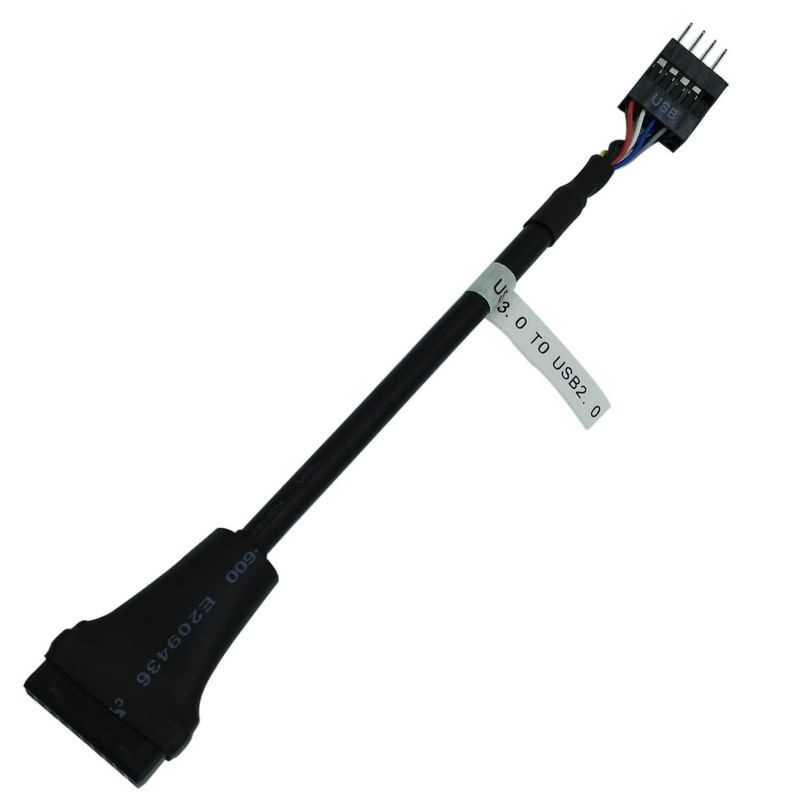
This adapter, converts a USB 3.0 header into a USB 2.0 header, you would just connect the USB 2.0 connection from your case to this. This is not included, but clicking on the picture will take you to amazon where you can buy one, or just use this link: https://geni.us/6NAIJBN?QeS8
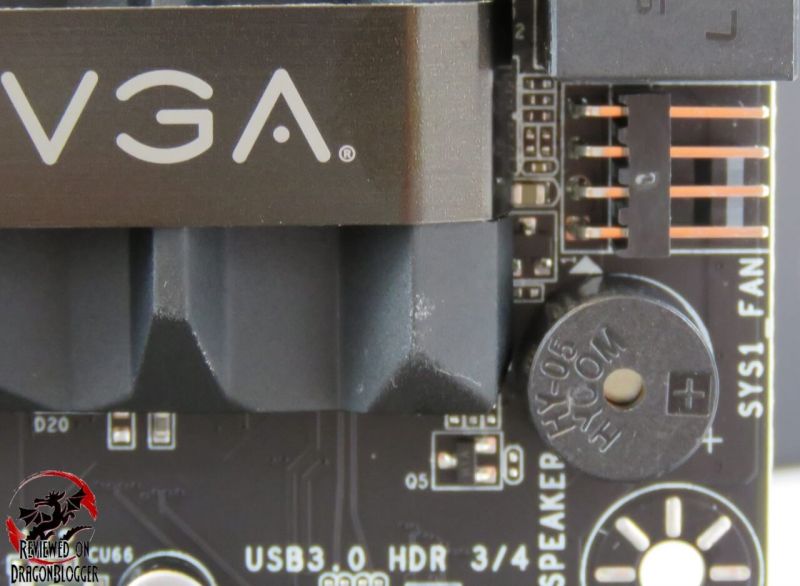
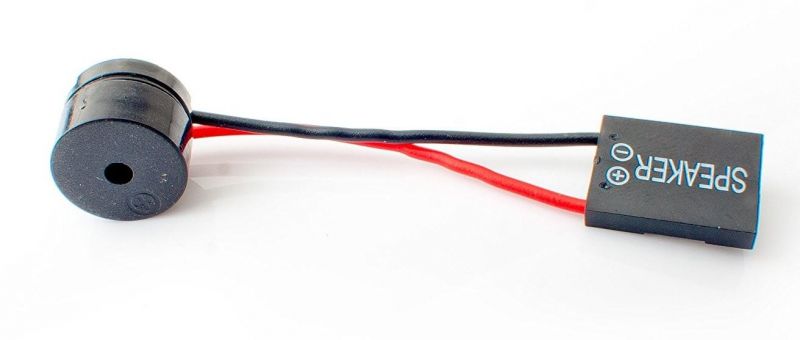
Coming up on the edge, a small yet very important piece when in need is the diagnostic PC Speaker. This often-forgotten little guy will help you if your PC will not boot in figuring out what exactly is going on. Many times, to save a buck, motherboard manufactures will omit this in favor of having 2 additional pins on the front panel header so that you can connect a separate PC speaker, that you need to purchase separately.
Next to that PC speaker, we find a four pin System Fan, Sys1 Fan.
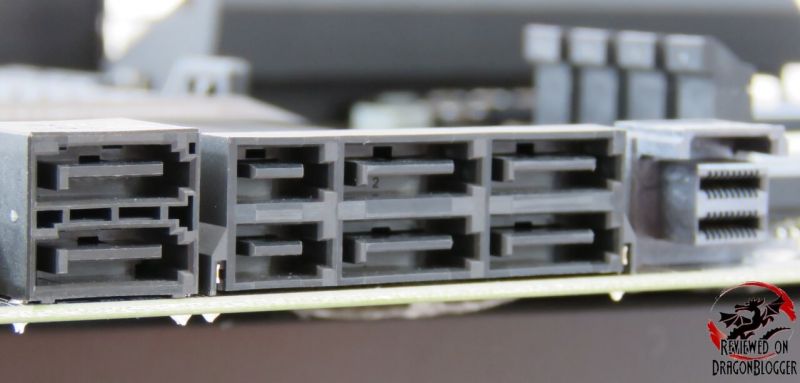
Moving up from there, we find some SATA ports, but some might look a little odd.
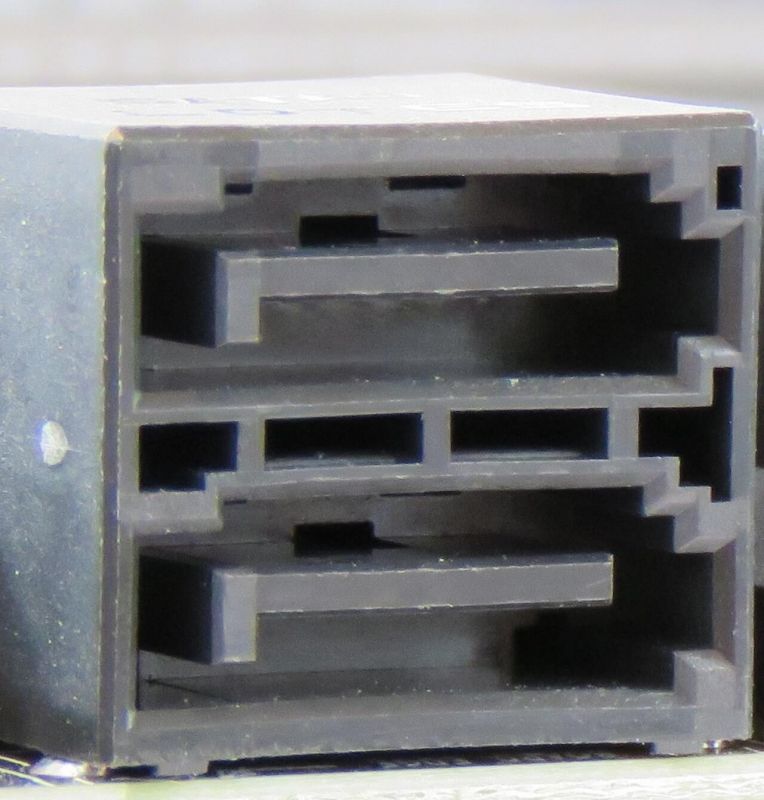
Coming from the left, these 2 SATA ports are the Intel SATA 3 / 6G ports. While they are 6G ports, they are backwards compatible with SATA 2 and SATA devices. These are run off of the Intel Z270 PCH which allows for NCQ, TRIM, hot swapping and RAID 0/1/5/10.
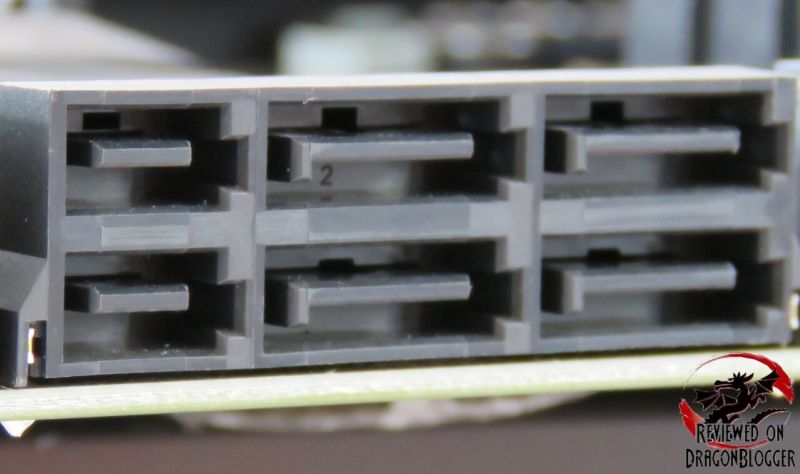
These ports, also part of the Intel Z270’s PCH controller offer something a bit new. While the right four ports are part of the 6 ports on this controller (I showed you the other 2 on the previous picture), this also can utilize SATA Express, but at a bit of a cost as they can be shared ports.
SATA Express, a standard created by Intel as a faster standard to improve the performance of SSDs. The cost is that SATA Express utilizes 2 SATA ports, as well as that additional port on the left. This one collection of SATA ports can only house 2 SATA drives when utilizing SATA Express. A nice feature, but very limiting capitalizing on speed versus function. If you don’t have many SATA devices this might be a nice feature, but if you do have many, you might want to skip this one.
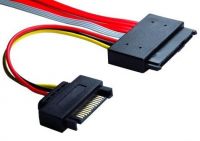
SATA Express also makes use of a special cable, the SATA Express cable and a special drive.
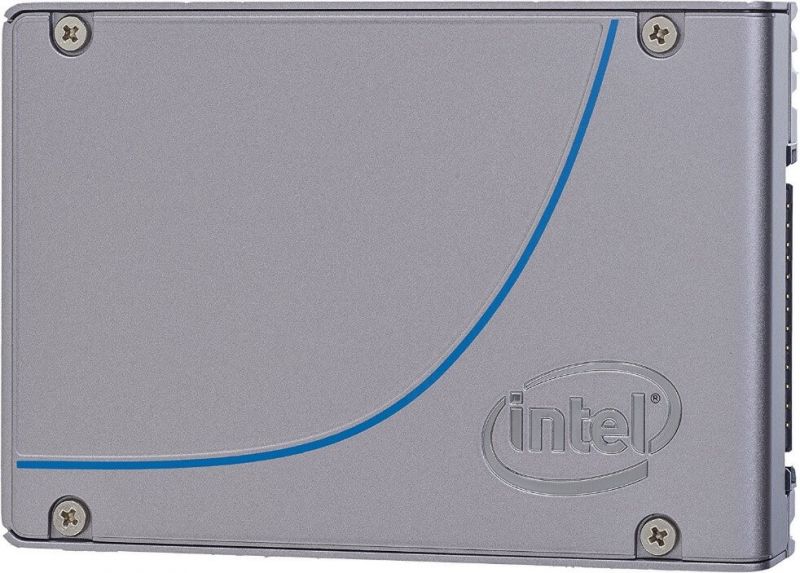
This is the Intel 750 Series 800GB PCI Express 3.0 MLC SSD.
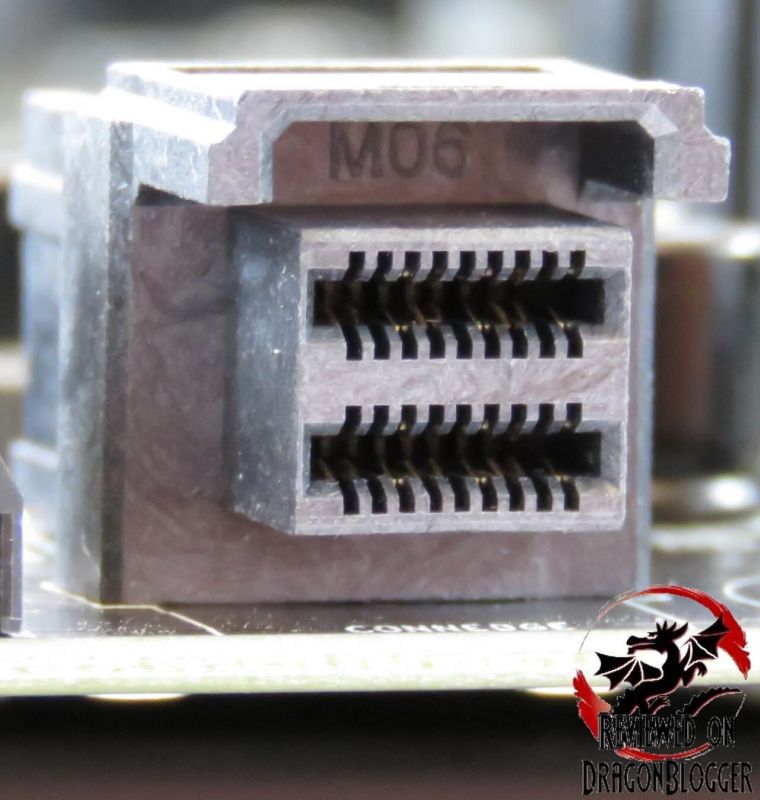
To the right of those SATA ports, we have yet another newer port U.2, no not the band… the port, the technology. This is another iteration of SATA Express but has twice the available bandwidth and a much smaller connection. Like M.2, this utilizes 4 PCI-e express lanes but comes in the form of a 2.5in drive, looks like a regular SSD but you can’t use both M.2 and U.2 simultaneously since they both take up the same x4 PCH lanes.
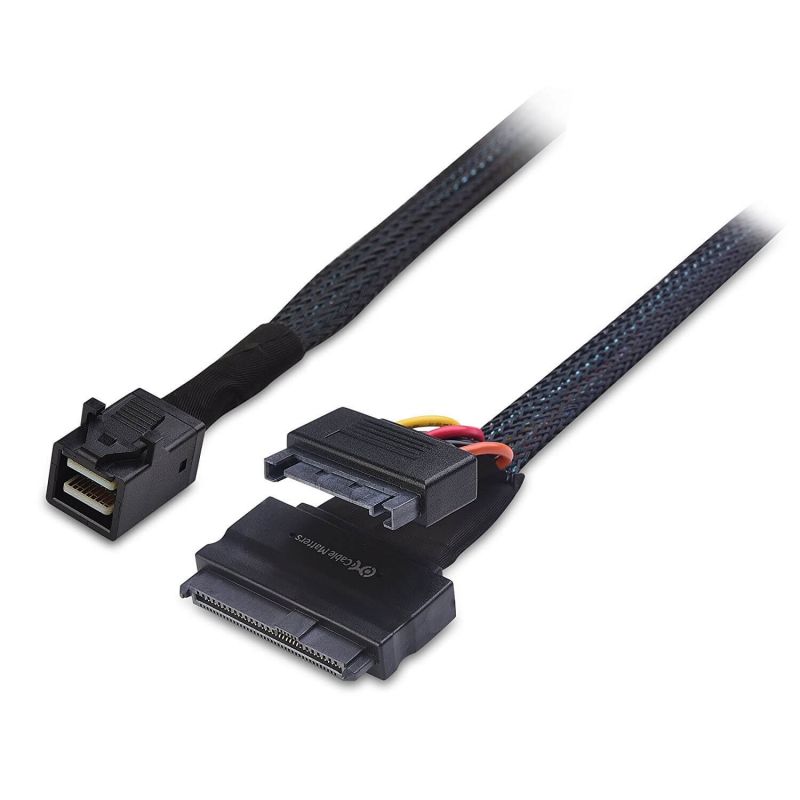
Like SATA Express, it utilizes a new cable, but can utilize the same Intel 750 Series 800GB PCI Express 3.0 MLC SSD drive I listed previously.
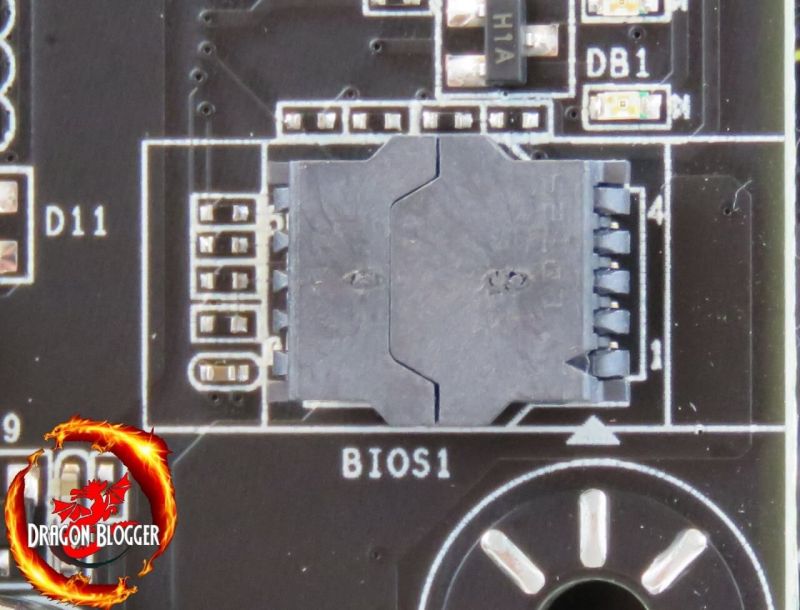
Above that, we find the AMI BIOS’ tomb. AMI stands for American Megatrends Inc, they make the BIOS. In this coffin lay the AMI BIOS Chip. This makes it a little easier to remove the chip in case the BIOS gets corrupted when flashing or something else occurs. Older types, you would need to use a paper clip to prey the chip our, or a BIOS chip puller, here just pop the doors our and lift the chip.
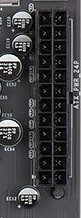
Just above the BIOS chip, we find the 24Pin ATX connector, pretty basic but I wanted to make mention of it. This is not an angled connector, which might make it great for some cases in tight spots though some might prefer angled.
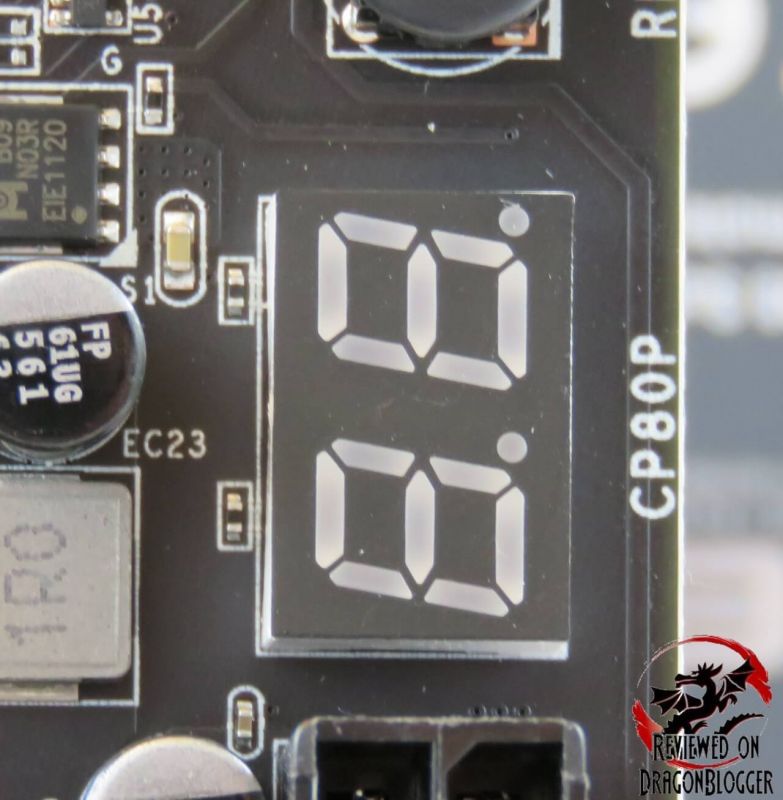
Above the ATX connection, we find the Debug LED / CPU Temp code reader. This is almost as good as the PC Speaker and equally as helpful. This display shows POST codes (Power On Self Test) during boot up, to let you know if it gets stuck during boot up, what it’s stuck on. When the system is already on though, it displays the CPU Temperature.
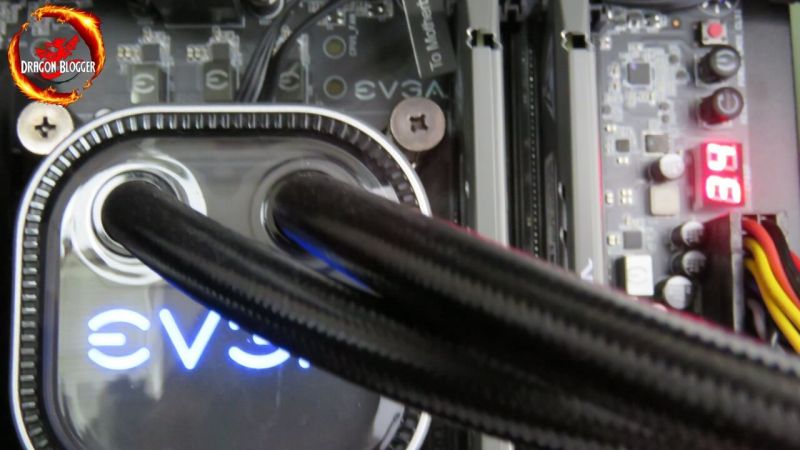
Here is how it looks inside of a system. The Intel Core i7 7700K is running very cool on the EVGA CLC 280 Liquid CPU Cooling unit.
A bit long to list here, but in the manual and in the link I provided previously to the manual, EVGA lists the AMI POST Codes.
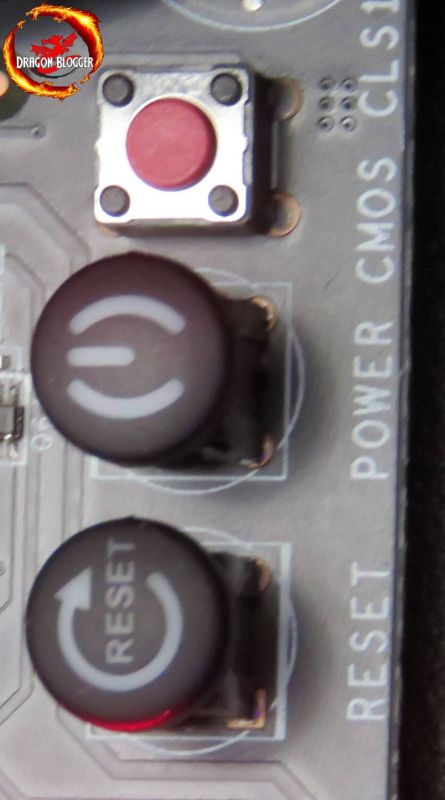
Coming up from there, we find the RESET, POWER and CMOS buttons. You might find these on some board, but usually they are tiny red buttons, like the CMOS button, but EVGA made them look really nice here. The main purpose for these buttons of course is to reset, power up and to clear the CMOS, but these are usually meant for people that have their boards on a test bench, to easily access the buttons when overclocking.
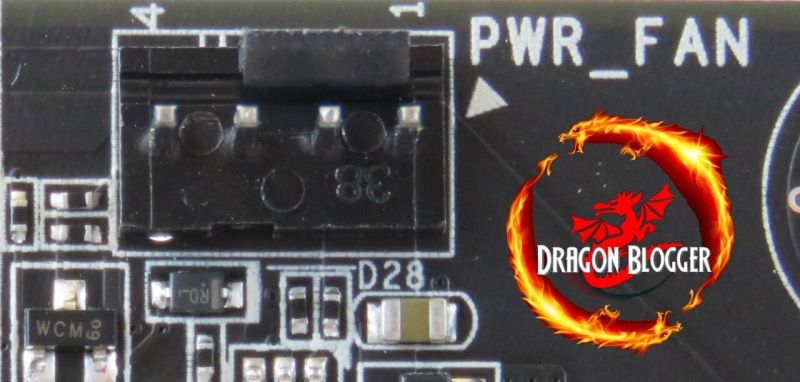
While a small aspect, it is worth mentioning like the last few, at the very top right-hand corner we find a 4 Pin Power Fan.
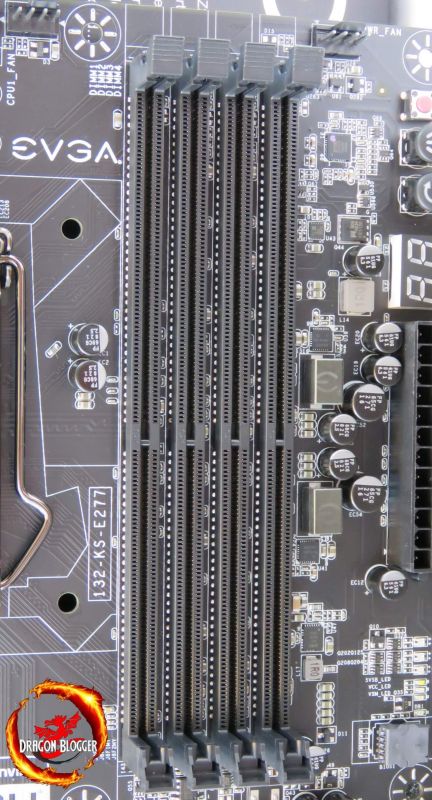
To the left, we find the 4 DIMM slots (Dual In-line Memory Module). These are the slots for your DDR4 memory.
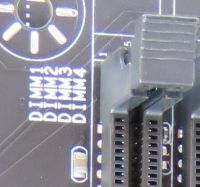
To the left of the DIMMs you can find the silk screening of what the DIMM numbers are. If you have 4 sticks of RAM, you can just pop them all in, but if you have 1, 2 or 3 you have to check the manual on how to install them. In this video, I show you how to install RAM onto this board.
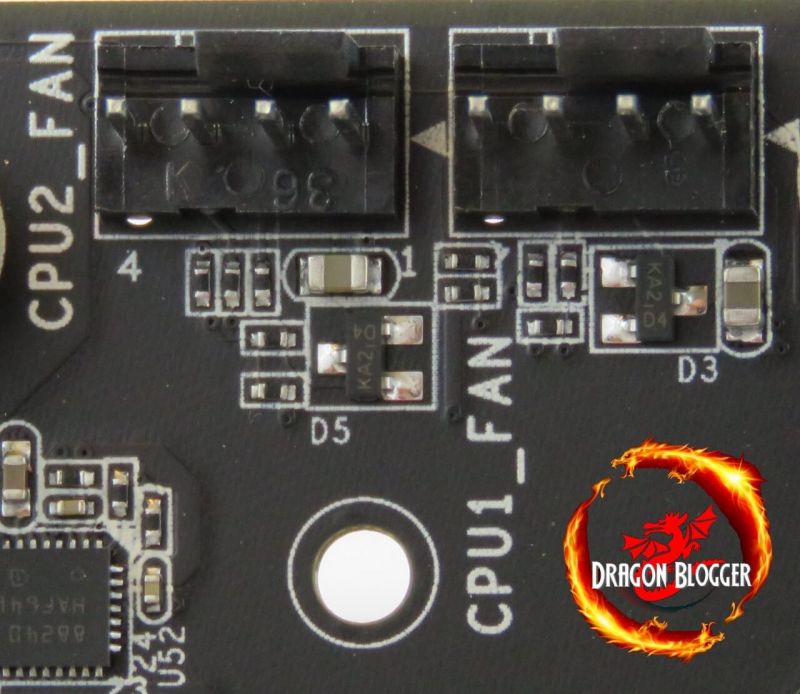
Now that we are done with the RAM, to the left of the DIMM slots we find CPU Fan 1 and CPU Fan 2.
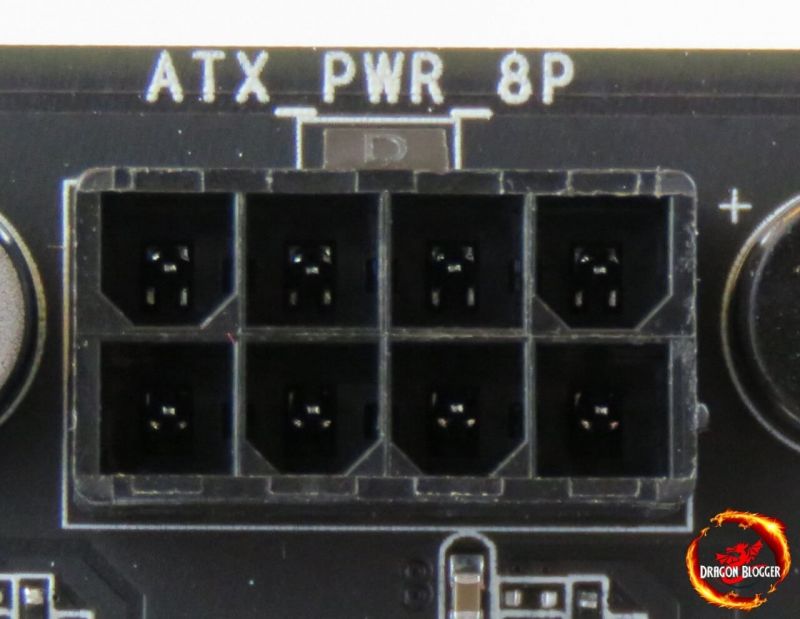
Coming over a little more to the left, we find the ATX 8 Pin connection, used to provide additional power to the CPU.
So that is about it for the edges of the board, now let’s discover other aspects of the board.
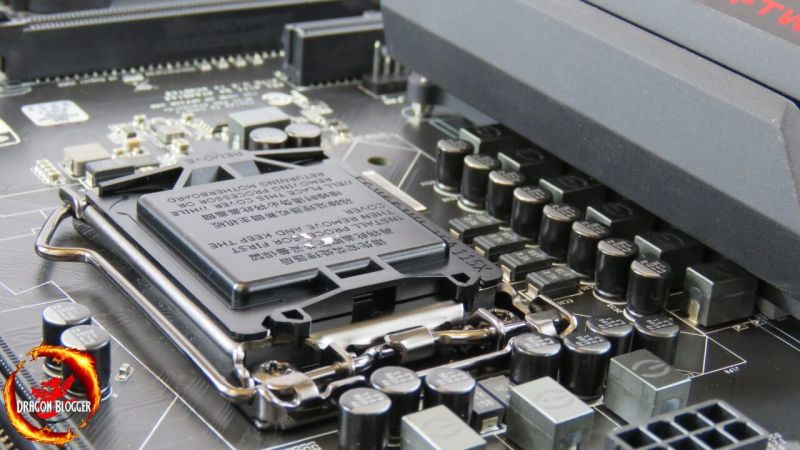
Under the 8 Pin ATX power, we find the LGA1151 socket.
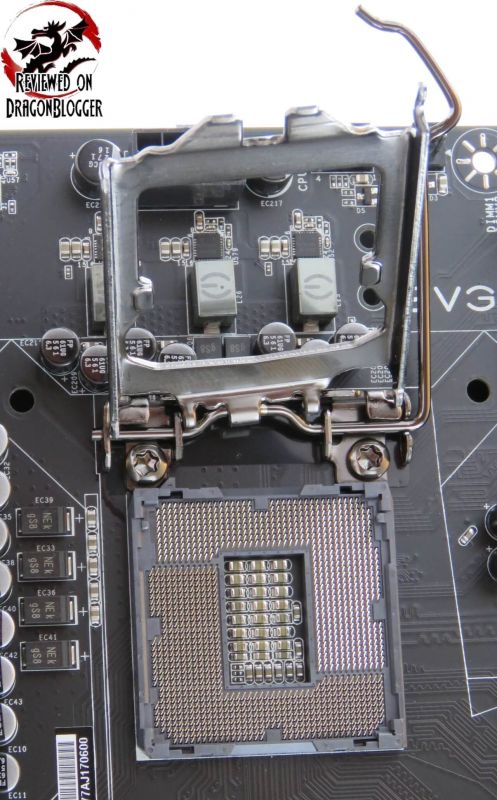
Removing the CPU pin cover and lifting the CPU retention arm we find the CPU pins. Be careful with these, if you bend/break the pins you have voided the warranty of this board. In a bit later in this review, we will go over how to build a complete PC and with that, I will show you how to install a processor into this socket.
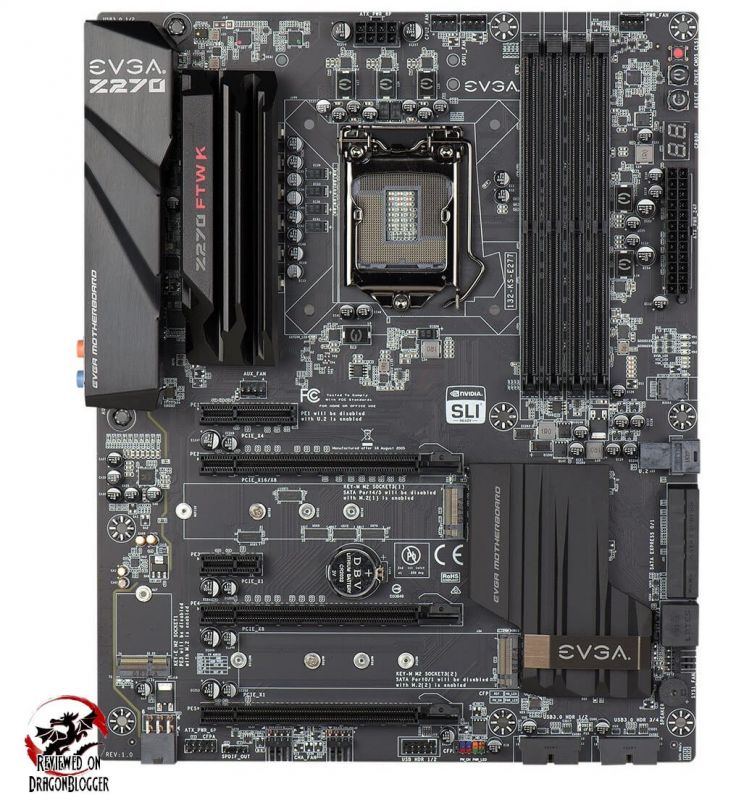
Zooming back out, we will look into the PCI-e slots, so let’s zoom back in.
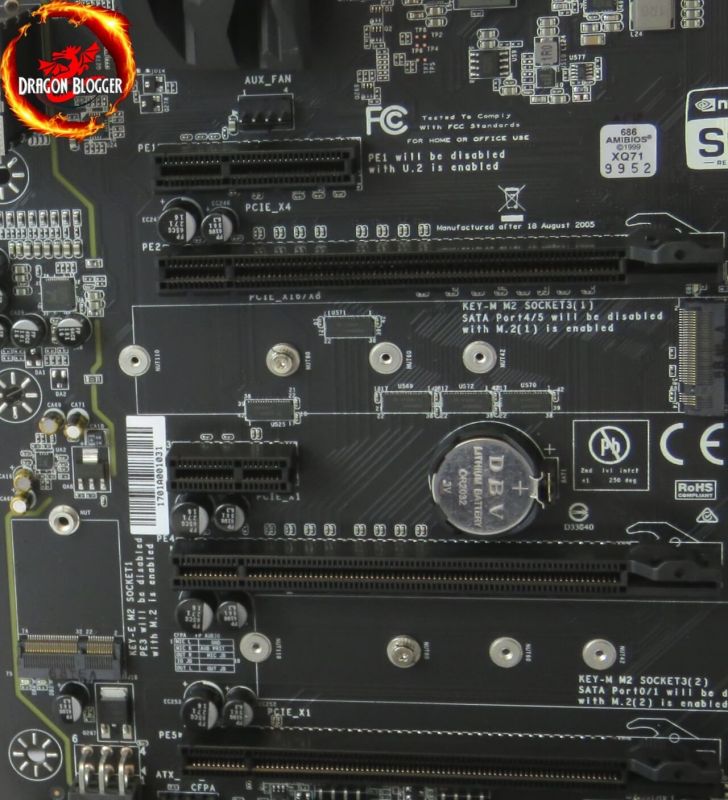
First off, we find at the very top, another 4 Pin Fan connecter, the Auxiliary Fan.
Just below that, we find a x4 PCI-e slot PCI-e slot 1. If you use the U.2 port, this slot needs to be disabled in the BIOS. Below that, we find the PCI-e x 16/8 slot, PCI-e slot 2. Next up is the PCI-e x 1 slot, which is PCIe slot 3, then the PCI-e x8 slot which is PCI-e slot 4 and finally the PCI-e x 1 slot which is PCI-e slot 5, it looks like a x16 but electrically it is a x1.
As mentioned before, it can handle 2-way SLI and Crossfire, but since the bottom slot is a x1, while it would fit, another video card will function.
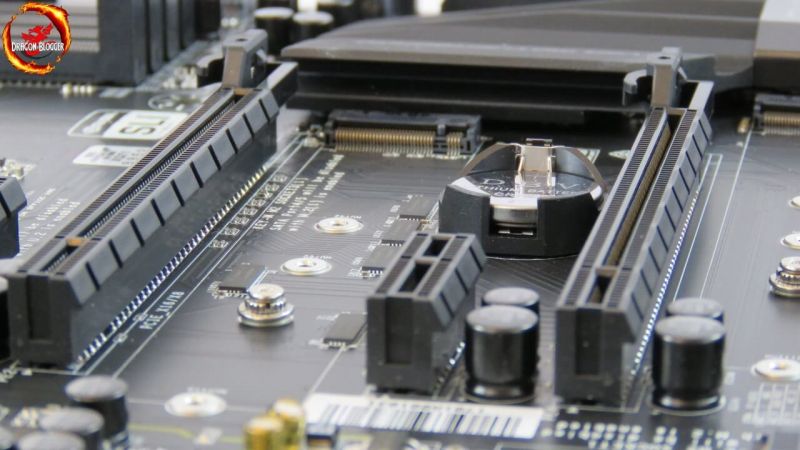
Between PCI-e slots 2 and 3, you will see a Key-M type M.2 socket. Placing a card here will require that you disable SATA ports 4 and 5, I will show you a little later not only how to install a drive here but also how to enable it in the BIOS. This will be directly under the video card.
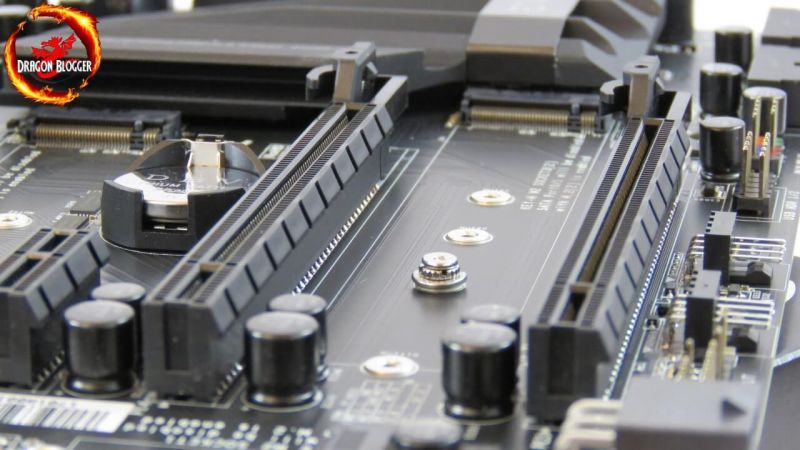
Between PCI-e slot 4 and 5, we find the final (of 3) M.2 slots. It is another Key-M slot and placing a driver here will require disabled SATA ports 0 and 1.
OK, so we have looked at the board and all, but how do you install it?
In this next chapter, I will show you how to build and cable a computer from the ground up using the EVGA Z270 FTW K motherboard.
Continue: Building a Computer with the EVGA Z270 FTW K
[nextpage title=”Building a Computer with the EVGA Z270 FTW K”]
In this video, I should you how to build a complete system using this board inside of the Cougar Panzer case.
and in this video, I show you how to do some basic cabling
When I built this machine, I did not have an M.2 Socket SSD, though I got one slightly later. In this video, I will show you how to install the WD Black 512GB PCI-e M.2 NVMe SSD.
So now with all of that, I will need you how to configure everything within the BIOS, then how to install your OS.
Continue: The BIOS
[nextpage title=”The BIOS”]
To configure the BIOS (Basic Input Output System) once everything is installed, you will need to power on your beast of a machine and once you see this BIOS Splash screen, start tapping on the Delete key. Since you have never configured your BIOS, you will hear a bunch of beeps which are the POST beeps (Power On Self Test), which if you did everything fine is a good thing. This is basically a legend so that you can see all of the settings in the BIOS.
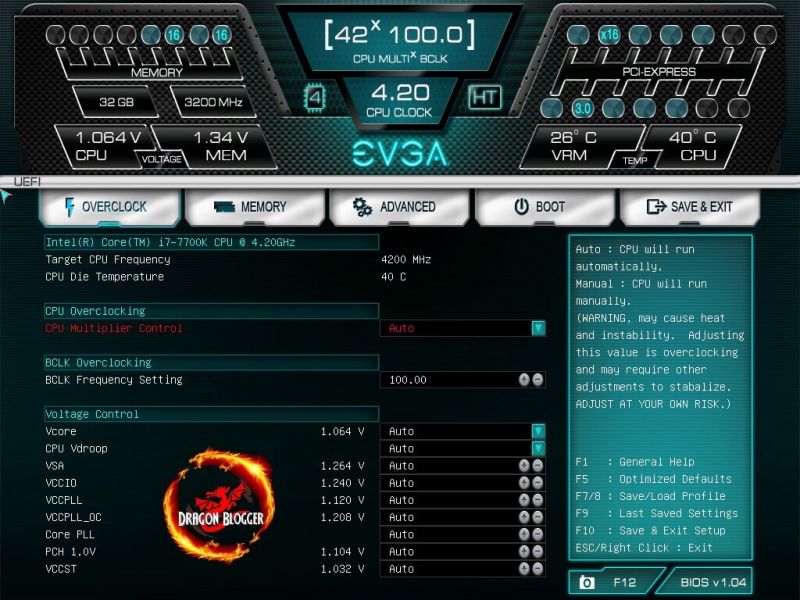
Once you get into your BIOS, you will be greeted with a screen like this, depending on your CPU and memory you might have slightly different readings. I had the Patriot Viper Elite Series DDR4 32GB 2800MHz previously overclocked so it was reading 3200Mhz on the RAM, a decent overclock on the Patriot Viper Elite Series DDR4 2800Mhz 32GB RAM PVE432G280C6KGY from 2800Mhz to 3200Mhz.
From here, you can overclock the CPU, raise the BLCK speed on the CPU either don’t like raising the CPU Multiplier, or want to raise a few extra Mhz’s with the Multiplier as well. Generally, I don’t like raising the BCLK (Base Clock), since it also raises the bus speeds of your computer, so you will essentially overclock your RAM, PCI-e slots, CPU and more, so it can cause instabilities. Along with raising Multipliers and BCLK, you may have to raise voltages depending on high you overclock and this board gives you a lot of control, so let’s move on.
This is the overclock tab, for the CPU and if you are used to more text based BIOS than this, it’s because this is a UEFI (Unified Extensible Firmware Interface) BIOS, so you can use your mouse. EUFI is designed to allow your computers firmware to interact more closely with the operating system, in this reviews case Windows 10. This BIOS allows you to take screenshots of the BIOS, like I have here by plugging in a USB thumb drive, so every time you hit F12 with a thumb drive inserted while in the BIOS, it will capture a screenshot of that screen.
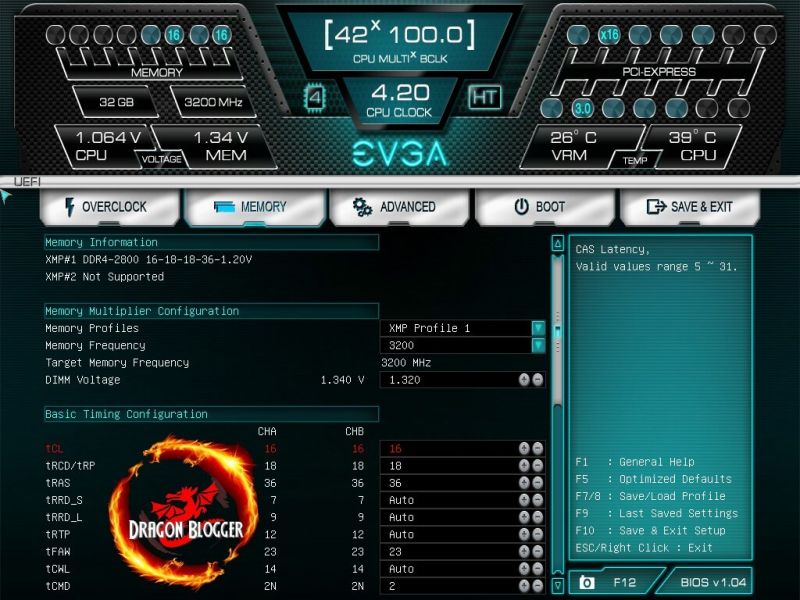
Clicking on the Memory tab, brings us to this screen. This screen allows you to view memory information, the set XMP (Intel Xtreme Memory Profile) Profiles for your memory. Memory frequencies, voltages and clock speeds. XMP Profiles allow you to safely overclock your memory above JEDEC (Joint Electron Device Engineering Council) standards to a predefined safe overclock set by and validated by memory manufacturers.
The particular memory I was using had an XMP Profile of 2800Mhz and I overclocked it to 3200Mhz, and I will run you through all of it. Let’s jump over to the Advanced Tab.
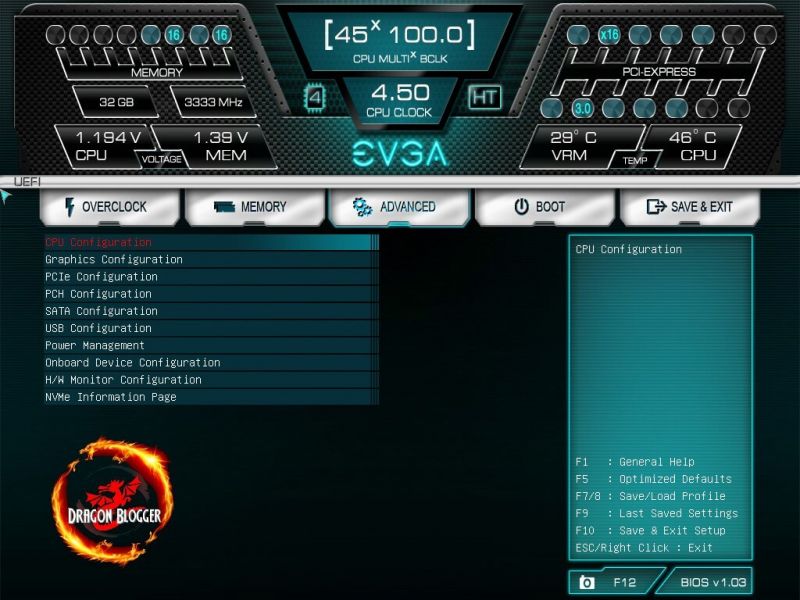
The memory tab, gives us a bunch of sub-menus, let’s check them out.
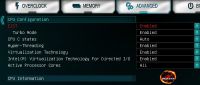
CPU Configuration, lets you see and set specific configurations for your CPU, another sub tab here is CPU Information.
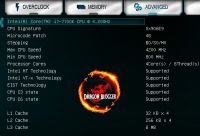
CPU Information shows us specifics on the CPU, but it’s just for information, nothing to change here. Back up one, to the Graphics Configuration.
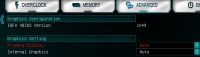
Here you can enable or disable the CPU’s internal graphics if available then also lets you set which is your Primary Display if you use both a physical GPU and the integrated GPU. Talking about GPU’s, let’s check out the PCI-e Configuration section
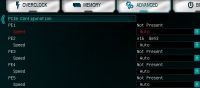
Here you can disable or set the PCI-e slots to more specific settings, like Gen 1, 2, 3 or Auto as you see here. On to SATA Configuration.
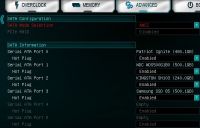
Under SATA Configuration, you can set the SATA Mode Selection as AHCI, RAID. Then under SATA Information you can enable or disable physical SATA ports.
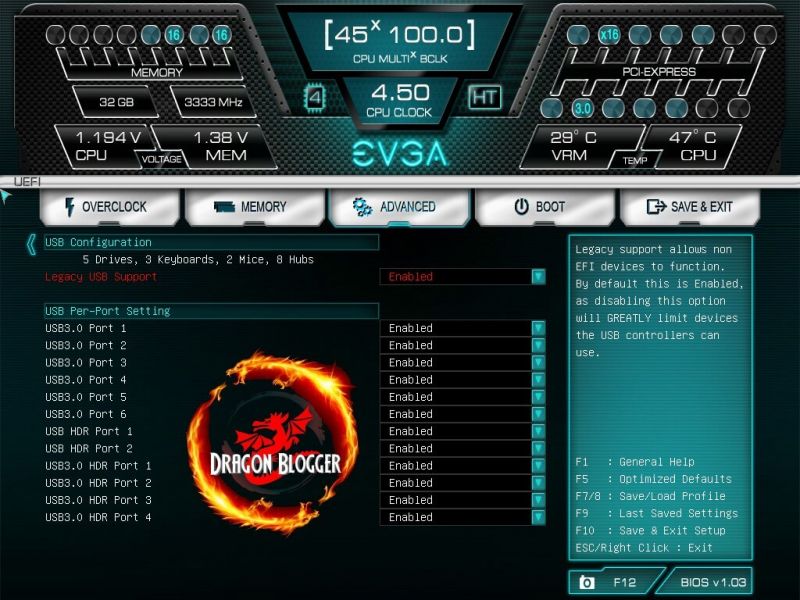
Under the USB Configuration, we find the ability to Enable or Disable Legacy USB Support. Along with that, under USB Per-Port Setting, you can disable specific USB ports as well as on board USB headers.
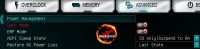
Under Power Management, you can enable or disable the lights on the motherboard, which actually I kind of like.
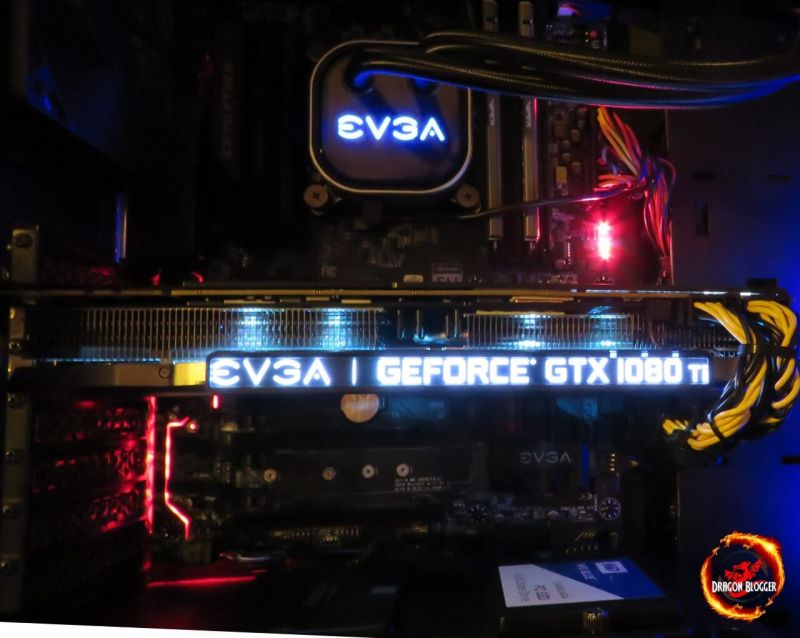
Here you will notice on the left, just under the video card, kind of looks like molten hot pipe, I actually went over this line earlier in the review, travelling alongside the M.2 Slot. Remember I mentioned “serves for a visually aesthetic purpose”, well this is it, and I think it looks pretty cool. This is how the board looks like with Dark Mode off.
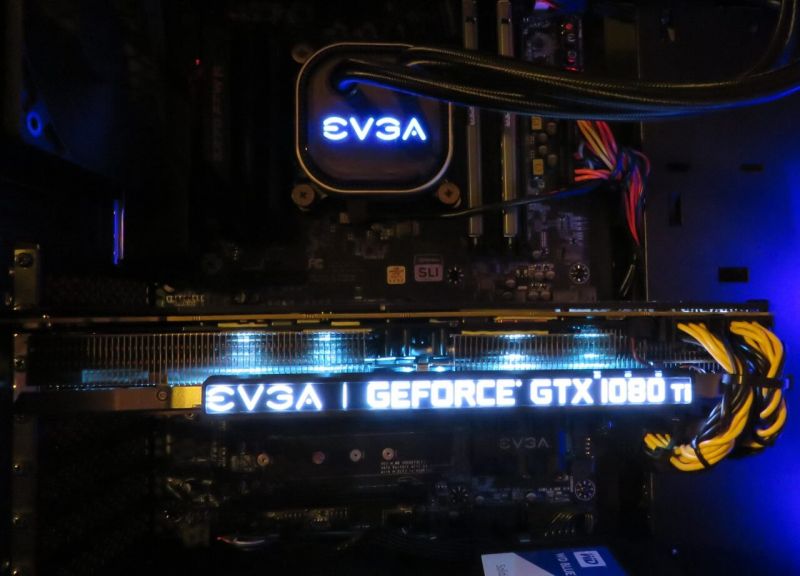
With Dark Mode On, the board looks a bit dull. Mind you, not all of us like flashy board, or maybe you don’t like red, my favorite color is Blue, but it’s OK that they are in a constant battle within my machine.
ERP Support disabled, allows the system to consume less than 1watt of power in an S5 (shutdown) state. With ERP enabled, PME Events Wake Up, Power On by Mouse, Power on By Keyboard and Wake on LAN will be unavailable. ACPI Sleep states allows you to disable Suspend States or enable S3 only (Suspend to RAM). Restore AC Power Loss, allows you to have the system go into its Last State if the power goes out and back on, allows it to keep the PC powered off and power on if the lights turn off then back on, even if the PC was off already.
Onboard Device Configuration allows you to Enable or Disable Intel LAN, Wake on LAN, Azalia (Realtek Audio), the Killer E2400 NIC, USB 3.1 Controller and then here is where you can enable or disable the U.2 and M.2 sockets. I have Socket 3 enabled since I am using the WD Black 512GB PCI-e NVMe SSD.
Under this section, you can check the temperature and set all of the individual fan headers.

Under NVMe Information Page, we find very basic information on the NVMe drives within the system.